<?xml version="1.0" encoding="utf-8"?>
<feed xmlns="http://www.w3.org/2005/Atom">
  <title>Flourish</title>
  
  
  <link href="https://flourish.studio/atom.xml" rel="self"/>
  
  <link href="https://flourish.studio/"/>
  <updated>2026-06-16T23:00:00.000Z</updated>
  <id>https://flourish.studio/</id>
  
  <author>
    <name>Flourish Team</name>
    
  </author>
  
  <generator uri="https://hexo.io/">Hexo</generator>
  
  <entry>
    <title>Dot plot vs scatter plot: Everything you need to know</title>
    <link href="https://flourish.studio/blog/scatter-vs-dot-plot/"/>
    <id>https://flourish.studio/blog/scatter-vs-dot-plot/</id>
    <published>2026-06-16T23:00:00.000Z</published>
    <updated>2026-06-16T23:00:00.000Z</updated>
    
    <content type="html"><![CDATA[<p>Dot plots and scatter plots look similar at first glance, but they serve very different purposes. Knowing which one to use makes your data <strong>easier to read</strong> and your insights <strong>clearer</strong>. Here’s what sets them apart.</p><h2 id="What-is-a-scatter-plot"><a href="#What-is-a-scatter-plot" class="headerlink" title="What is a scatter plot?"></a>What is a scatter plot?</h2><p>A <a href="https://flourish.studio/visualisations/scatter-charts/">scatter plot</a> is a chart type that uses dots to show the relationship between two numerical variables. One variable is plotted on the X axis and the other on the Y axis, with each dot representing a single data point. The dot’s position shows how the two values relate to each other.</p><p>Scatter plots are especially useful for identifying trends, patterns, and correlations within a dataset.</p><ul><li><strong>Positive correlation:</strong> values on the X and Y axes rise together</li><li><strong>Negative correlation:</strong> as one value rises, the other falls</li><li><strong>No correlation:</strong> dots are scattered randomly with no clear pattern</li></ul><br><figure class="text-width"><div class="flourish-embed" data-src="visualisation/29319888?654906" data-height="30rem"><script src="https://public.flourish.studio/resources/embed.js" data-ot-ignore></script><noscript><img src="https://public.flourish.studio/visualisation/29319888/thumbnail" width="100%" alt="scatter plot" /></noscript></div></figure><figure class="text-width">    <a href="https://app.flourish.studio/templates#template-scatter"><div class="btn cta">Create your own</div></a></figure><h2 id="What-is-a-dot-plot"><a href="#What-is-a-dot-plot" class="headerlink" title="What is a dot plot?"></a>What is a dot plot?</h2><p>Although similar in appearance to scatter plots, dot plots are designed to <strong>show the distribution of a single numerical variable</strong>. Instead of comparing two variables on X and Y axis, dot plots place values along a single numerical axis. When multiple data points share the same value, the dots stack vertically or horizontally, making it easy to spot clusters, gaps, ranges, and outliers in the dataset.</p><p>There are several types of dot plots. Here are some of the most popular ones:</p><ol><li><strong>Traditional dot plot:</strong> shows the distribution of data, with each dot representing a data point. This type makes patterns and frequencies easy to understand at a glance.<figure class="text-width"><div class="flourish-embed" data-src="visualisation/29350927?654906" data-height="30rem"><script src="https://public.flourish.studio/resources/embed.js" data-ot-ignore></script><noscript><img src="https://public.flourish.studio/visualisation/29350927/thumbnail" width="100%" alt="scatter plot" /></noscript></div></figure><br></li><li><strong>Cleveland dot plot:</strong> compares quantitative data across categories, similar to a bar chart (but without the bars).<figure class="text-width"><div class="flourish-embed" data-src="visualisation/29351144?654906" data-height="30rem"><script src="https://public.flourish.studio/resources/embed.js" data-ot-ignore></script><noscript><img src="https://public.flourish.studio/visualisation/29351144/thumbnail" width="100%" alt="scatter plot" /></noscript></div></figure><br></li><li><strong>Connected dot plot (dumbbell chart):</strong> highlights the difference between two data series. This makes it ideal for showing change over time or comparing before-and-after values.<figure class="text-width"><div class="flourish-embed" data-src="visualisation/29350767?654906" data-height="30rem"><script src="https://public.flourish.studio/resources/embed.js" data-ot-ignore></script><noscript><img src="https://public.flourish.studio/visualisation/29350767/thumbnail" width="100%" alt="scatter plot" /></noscript></div></figure><br></li><li><strong>Beeswarm plot:</strong> spreads individual points along one axis without overlap, showing density and distribution while keeping every data point visible. <figure class="text-width"><div class="flourish-embed" data-src="visualisation/29351287?654906" data-height="30rem"><script src="https://public.flourish.studio/resources/embed.js" data-ot-ignore></script><noscript><img src="https://public.flourish.studio/visualisation/29351287/thumbnail" width="100%" alt="scatter plot" /></noscript></div></figure><br></li><li><strong>Box plot:</strong> summarizes the distribution of a numerical variable. The box marks the middle 50% of values, while the whiskers and any outlier points beyond them show the spread. This makes it easy to compare distributions across groups at a glance.<figure class="text-width"><div class="flourish-embed" data-src="visualisation/29351672?654906" data-height="30rem"><script src="https://public.flourish.studio/resources/embed.js" data-ot-ignore></script><noscript><img src="https://public.flourish.studio/visualisation/29351672/thumbnail" width="100%" alt="scatter plot" /></noscript></div></figure><br></li><li><strong>Violin plot:</strong> combines a box plot with a density curve to show both summary statistics and the overall shape of the data distribution.<figure class="text-width"><div class="flourish-embed" data-src="visualisation/29350898?654906" data-height="30rem"><script src="https://public.flourish.studio/resources/embed.js" data-ot-ignore></script><noscript><img src="https://public.flourish.studio/visualisation/29350898/thumbnail" width="100%" alt="scatter plot" /></noscript></div></figure><br></li></ol><h2 id="Dot-plot-vs-scatter-plot-the-key-difference"><a href="#Dot-plot-vs-scatter-plot-the-key-difference" class="headerlink" title="Dot plot vs scatter plot: the key difference"></a>Dot plot vs scatter plot: the key difference</h2><p>The core difference comes down to how many variables you’re working with.</p><p>A dot plot works with <strong>one numerical variable</strong>. It shows how values are spread and how often they appear. A scatter plot compares <strong>two numerical variables</strong> and shows whether they are related.</p><h2 id="When-to-use-each"><a href="#When-to-use-each" class="headerlink" title="When to use each"></a>When to use each</h2><p>Use a <strong>dot plot</strong> when you want to:</p><ul><li>See how a single variable is distributed across a dataset</li><li>Compare distributions across groups</li><li>Spot clusters, gaps, or outliers</li><li>Explain concepts like mean, median, and mode</li></ul><p>Dot plots work best with smaller datasets, where individual data points are meaningful.</p><p>Use a <strong>scatter plot</strong> when you want to:</p><ul><li>Explore the relationship between two variables</li><li>Identify trends or patterns</li><li>Make predictions based on observed data</li></ul><h2 id="A-practical-example"><a href="#A-practical-example" class="headerlink" title="A practical example"></a>A practical example</h2><p>Say you’re looking at monthly sales figures for 15 sales representatives.</p><p>With a <strong>dot plot</strong>, you plot each rep’s sales on a single line. You can instantly see how the team is performing: for example, eight reps are clustered around $8–10k, two around $5k, and one outlier at $18k. With this type of visualization, you are answering the question: “How is sales performance spread across the team?”</p><br><figure class="text-width">    <div class="flourish-embed" data-src="story/3705133?654906"><script src="https://public.flourish.studio/resources/embed.js" data-ot-ignore></script><noscript><img src="https://public.flourish.studio/story/3705133/thumbnail" width="100%" alt="dot plot" /></noscript></div></figure><figure class="text-width">    <a href="https://app.flourish.studio/templates#template-scatter"><div class="btn cta">Create your own</div></a></figure><p>With a <strong>scatter plot</strong>, you plot two things per person: their monthly sales (X axis) versus the number of client calls they made (Y axis). Now you’re answering a different question: “Does making more calls lead to higher sales?”</p><p>Same data, different question, different chart.</p><br><figure class="text-width">    <div class="flourish-embed" data-src="story/3705132?654906"><script src="https://public.flourish.studio/resources/embed.js" data-ot-ignore></script><noscript><img src="https://public.flourish.studio/story/3705132/thumbnail" width="100%" alt="scatter plot" /></noscript></div></figure><figure class="text-width">    <a href="https://app.flourish.studio/templates#template-scatter"><div class="btn cta">Create your own</div></a></figure><h2 id="Which-one-should-you-use"><a href="#Which-one-should-you-use" class="headerlink" title="Which one should you use?"></a>Which one should you use?</h2><p>Both dot plots and scatter plots use dots to display data, but that’s where the similarity ends. </p><p>Dot plots are the best option when you want to understand the distribution of a <strong>single</strong> variable. Scatter plots are better suited when you’re exploring the relationship between <strong>two</strong> variables. </p><p>Choosing the right one comes down to asking: what question am I trying to answer? Once you know that, the right chart becomes obvious. </p><p>Ready to try it yourself? Build your own dot plot or scatter plot in Flourish in just a few clicks.</p><p>Take a look at our blog posts below for more inspiration.</p><figure class="wide"><div class="flourish-embed flourish-cards" data-src="visualisation/29352580?64721"><script src="https://public.flourish.studio/resources/embed.js" data-ot-ignore></script></div></figure>]]></content>
    
    
    <summary type="html">Learn the key distinctions and how to pick the right chart for your data</summary>
    
    
    <content src="https://flourish.studio/blog/scatter-dot-plot-banner.gif" type="image"/>
    
    
    <category term="Best practice" scheme="https://flourish.studio/blog/categories/best-practice/"/>
    
    <category term="Examples" scheme="https://flourish.studio/blog/categories/examples/"/>
    
    
  </entry>
  
  <entry>
    <title>What great scrollytelling looks like — and how to build it yourself</title>
    <link href="https://flourish.studio/blog/scrollytelling-examples/"/>
    <id>https://flourish.studio/blog/scrollytelling-examples/</id>
    <published>2026-05-26T23:00:00.000Z</published>
    <updated>2026-05-26T23:00:00.000Z</updated>
    
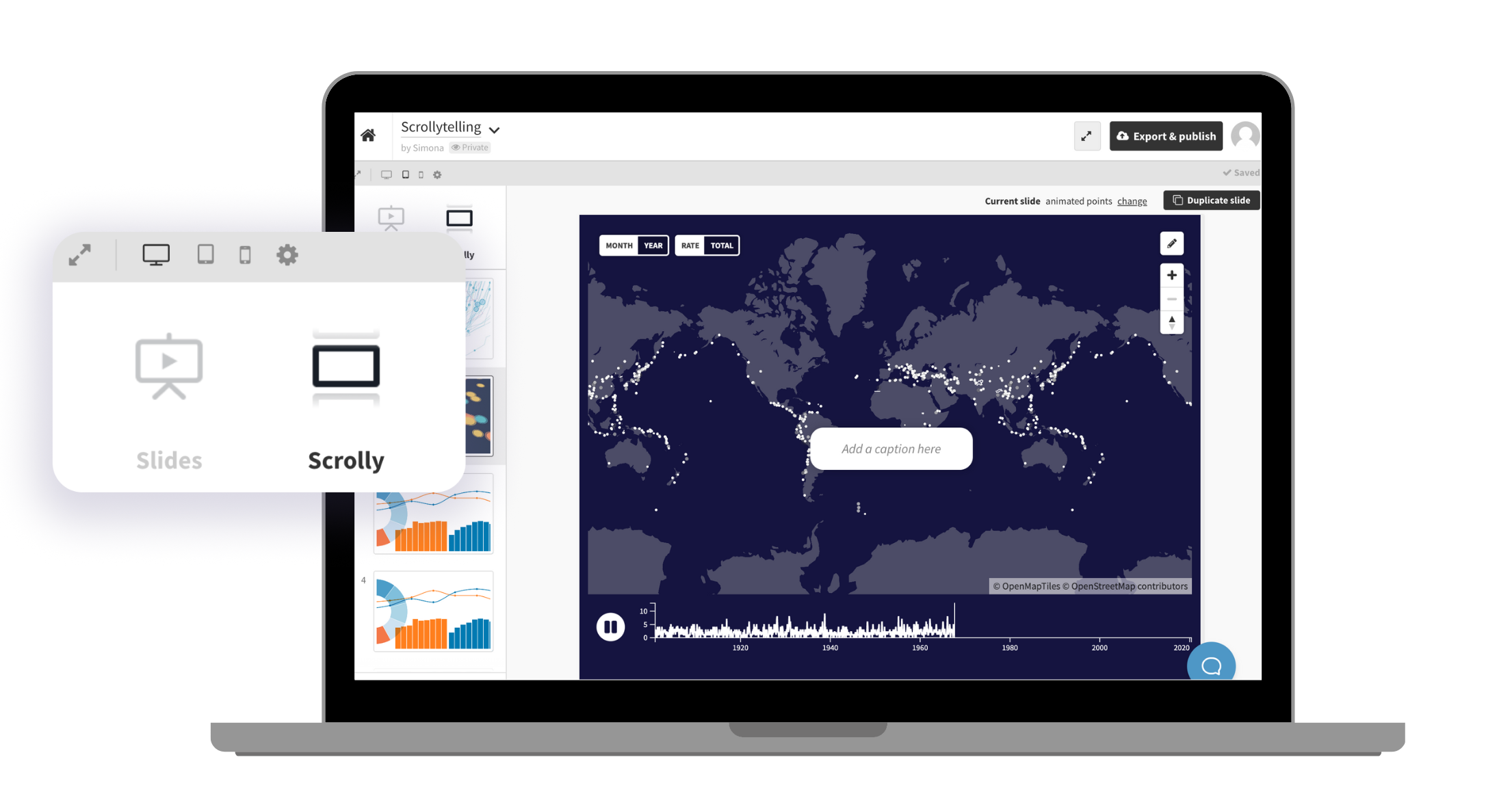
    <content type="html"><![CDATA[<p>Most data stories are built the same way: a chart, a caption, maybe a paragraph of context. Then another chart. Then another. By the third, your reader has already opened a new tab.</p><p>The issue isn’t the data. It’s the pacing. Presenting everything at once forces your audience to do all the interpretive work themselves — and most people won’t bother. They need to be guided.</p><p>That’s exactly what <a href="https://flourish.studio/visualisations/scrollytelling/">scrollytelling</a> does. Instead of showing everything at once, content reveals itself step by step as your reader scrolls — so their journey through the page becomes the story. Charts animate, maps zoom, timelines advance. You show them one thing at a time, in the order that makes the most sense. They set the pace. <strong>You set the story.</strong></p><figure class="text-width"><div class="flourish-embed" data-src="story/3678921?654906" data-height="30rem"><script src="https://public.flourish.studio/resources/embed.js" data-ot-ignore></script><noscript><img src="https://public.flourish.studio/story/3678921/thumbnail" width="100%" alt="scrolly" /></noscript></div></figure><figure class="text-width">    <a href="https://app.flourish.studio/projects"><div class="btn cta">Get started now</div></a></figure><p>This example shows how a single dataset can be transformed into a guided narrative — each scroll step revealing one insight at a time, so the reader never feels lost or overwhelmed.</p><h2 id="Why-scrollytelling-works-so-well-for-data-storytelling"><a href="#Why-scrollytelling-works-so-well-for-data-storytelling" class="headerlink" title="Why scrollytelling works so well for data storytelling"></a>Why scrollytelling works so well for data storytelling</h2><p>Scrollytelling isn’t popular just because it looks great. There are real, human reasons why it works better than a static chart — especially when your data is complex, or your audience isn’t a room full of analysts.</p><figure class="text-width"><div class="flourish-embed" data-src="visualisation/29017482?654906" data-height="30rem"><script src="https://public.flourish.studio/resources/embed.js" data-ot-ignore></script><noscript><img src="https://public.flourish.studio/visualisation/29017482/thumbnail" width="100%" alt="cards viz showing why scrollytelling works so well for data storytelling" /></noscript></div></figure><p>Traditional charts often force readers to process everything at once. Scrollytelling breaks information into manageable moments, allowing you to <strong>reveal context gradually</strong> and <strong>direct attention</strong> to the most important insights.</p><p>As users scroll, <a href="https://flourish.studio/blog/animated-charts/">charts can animate</a>, <a href="https://flourish.studio/blog/chart-filters/">filter</a>, zoom, or transition between views. This creates a sense of progression that feels more natural than clicking through slides or jumping between static visuals.</p><p>At the same time, scrollytelling creates a <strong>stronger narrative flow</strong>. Instead of presenting disconnected charts, you guide readers through a structured journey with a beginning, middle, and end. This approach makes complex datasets feel approachable while helping viewers retain key information more effectively.</p><p>The scrolly below puts this into practice with a line chart that builds progressively, letting the reader absorb each data point before the next appears. </p><br><figure class="text-width"><div class="flourish-embed" data-src="story/3677407?654906" data-height="30rem"><script src="https://public.flourish.studio/resources/embed.js" data-ot-ignore></script><noscript><img src="https://public.flourish.studio/story/3677407/thumbnail" width="100%" alt="scrolly" /></noscript></div></figure><figure class="text-width">    <a href="https://app.flourish.studio/projects"><div class="btn cta">Get started now</div></a></figure><p>You can also use your scrolly captions to actively lead your audience through a complicated chart. Here the captions are actively directing the reader’s eye to the most important elements at each step. </p><br><figure class="text-width"><div class="flourish-embed" data-src="story/3684300?654906" data-height="30rem"><script src="https://public.flourish.studio/resources/embed.js" data-ot-ignore></script><noscript><img src="https://public.flourish.studio/story/3684300/thumbnail" width="100%" alt="scrolly" /></noscript></div></figure><figure class="text-width">    <a href="https://app.flourish.studio/projects"><div class="btn cta">Get started now</div></a></figure><h2 id="How-animation-helps-your-audience-follow-along"><a href="#How-animation-helps-your-audience-follow-along" class="headerlink" title="How animation helps your audience follow along"></a>How animation helps your audience follow along</h2><p>When charts animate between states as your reader scrolls, they can watch change happen rather than mentally reconstructing it from two separate visuals. Smooth transitions make it easier to track movement, compare values, and notice patterns that might otherwise feel abrupt or invisible.</p><p>Highlighting specific data points, filtering down to a subset, or zooming into a region of a map — all of these create stronger continuity throughout your story. The reader always knows where they are, what changed, and why it matters. </p><br><figure class="text-width"><div class="flourish-embed" data-src="story/3677371?654906" data-height="30rem"><script src="https://public.flourish.studio/resources/embed.js" data-ot-ignore></script><noscript><img src="https://public.flourish.studio/story/3677371/thumbnail" width="100%" alt="scrolly" /></noscript></div></figure><figure class="text-width">    <a href="https://app.flourish.studio/projects"><div class="btn cta">Get started now</div></a></figure><h2 id="What-separates-a-good-scrolly-from-a-great-one"><a href="#What-separates-a-good-scrolly-from-a-great-one" class="headerlink" title="What separates a good scrolly from a great one"></a>What separates a good scrolly from a great one</h2><p>The best scrollytelling pieces feel effortless to read. That simplicity doesn’t happen by accident — and Flourish gives you the tools to achieve it without compromising on quality or spending hours on production.</p><ul><li><strong>One idea per section:</strong> Focus on one key insight at each scroll step rather than presenting every finding at once. Build a curated sequence of story points that guides your reader through the data rather than overwhelming them with it.</li><li><strong>Let your annotations do the work:</strong> <a href="https://flourish.studio/blog/introducing-annotations/">Add labels, annotations, and highlights</a> directly onto your visualizations. The most effective annotations don’t describe what the chart is showing; they reinforce the insight the reader should take away from it. </li><li><strong>Use color to direct attention:</strong> Strategic highlighting is one of the most effective tools in scrollytelling. <a href="https://flourish.studio/blog/color-in-data-visualization/">Keep secondary elements muted</a> so the focal data point draws the eye. This visual hierarchy becomes especially powerful across multiple scroll transitions, where you want the reader’s eye to land in exactly the right place every time.</li></ul><h2 id="Build-your-scrolly-in-three-simple-steps"><a href="#Build-your-scrolly-in-three-simple-steps" class="headerlink" title="Build your scrolly in three simple steps"></a>Build your scrolly in three simple steps</h2><p>Building a scrollytelling piece used to mean hiring a developer, fighting with JavaScript libraries, and praying it didn’t break on mobile. </p><p>With Flourish, you can create immersive, scroll-driven stories directly in the story editor. The result? An experience that looks like it took a whole dev team to build — created by you, in a fraction of the time. </p><p>All it needs are three simple steps: </p><ol><li>Create your visualizations: Start with any Flourish template. Add your slides in the story editor just as you would for any Flourish story, with captions, text, and annotations.</li><li>Switch to scrolly mode: Once your visualizations and captions are in place, <a href="https://helpcenter.flourish.studio/hc/en-us/articles/8761522702991-How-to-create-a-scrolly-using-the-story-editor">select Scrolly in the story navigation settings</a>. That’s it — your story becomes a scroll-driven experience in a single click.</li><li>Publish and embed anywhere: Publish your scrolly and embed it as you would with any other Flourish visualization or story. It looks great on every screen size, no extra setup needed.</li></ol><figure class="text-width"><img src="https://public.flourish.studio/uploads/654906/e096e453-17e2-452e-8907-f69917e431c5.png" alt="Screenshot of the Flourish story editor that now has a Scrolly button which allows you to turn any presentation into a stunning scrollytelling piece in seconds"></figure><h2 id="Customize-your-captions-further"><a href="#Customize-your-captions-further" class="headerlink" title="Customize your captions further"></a>Customize your captions further</h2><p>You can also <a href="https://helpcenter.flourish.studio/hc/en-us/articles/8761522716943-How-to-style-scrolly-captions-created-in-story-editor">place your scrolly captions to the left or right</a> of the chart. Placing captions to the side rather than overlaying the chart works particularly well here — the reader can read the caption and interact with the map simultaneously, without either competing for attention.</p><style>.scrolly-captions-left {    background-color: #292929 !important;    padding: 30px 0 !important;    max-width: none !important;    width: 100vw !important;    margin-left: calc(50% - 50vw) !important;    margin-right: calc(50% - 50vw) !important;}@media (min-width: 768px) {    .scrolly-captions-left .flourish-embed {        margin-left: 35vw !important;    }    .scrolly-captions-left .fl-scrolly-caption {        margin-left: -30vw !important;        margin-right: 70vw !important;        width: 25vw !important;    }}@media (max-width: 767px) {    .scrolly-captions-left {        padding: 20px 0 !important;    }    .scrolly-captions-left .flourish-embed {        padding: 0 15px !important;    }    .scrolly-captions-left .fl-scrolly-caption {        padding: 0 15px !important;    }}@media (min-width: 768px) {    .scrolly-captions-left .fl-scrolly-caption > div {        background-color: transparent !important;        box-shadow: none !important;    }}.scrolly-captions-left .fl-scrolly-caption p {    color: #ffffff !important;}@media (max-width: 767px) {    .scrolly-captions-left .fl-scrolly-caption p {        color: inherit !important;    }}</style><br><figure class="full"><figure class="scrolly-captions-left"><div class="flourish-embed" data-src="story/3684335?654906" data-height="35rem"><script src="https://public.flourish.studio/resources/embed.js" data-ot-ignore></script><noscript><img src="https://public.flourish.studio/story/3684335/thumbnail" width="100%" alt="scrolly" /></noscript></div></figure> </figure><h2 id="Why-scrollytelling-continues-to-grow"><a href="#Why-scrollytelling-continues-to-grow" class="headerlink" title="Why scrollytelling continues to grow"></a>Why scrollytelling continues to grow</h2><p>As online audiences become more selective with their attention, static charts often struggle to hold engagement. Scrollytelling offers a more natural and immersive way to communicate insights by combining narrative structure with interactive data visualization.</p><p>With Flourish, teams can create these experiences without relying on custom development or complex production workflows. Whether you’re building a newsroom feature, a branded report, or an educational project, scrollytelling helps transform data into something people genuinely want to explore.</p><p>And when readers stay engaged longer, the story behind the data becomes far more memorable.</p><figure class="wide"><div class="flourish-embed flourish-cards" data-src="visualisation/29023062?64721"><script src="https://public.flourish.studio/resources/embed.js" data-ot-ignore></script></div></figure>]]></content>
    
    
    <summary type="html">Discover scrollytelling examples and how Flourish makes scrollytelling possible without writing a single line of code</summary>
    
    
    <content src="https://flourish.studio/blog/scrollytelling-banner.gif" type="image"/>
    
    
    <category term="Best practice" scheme="https://flourish.studio/blog/categories/best-practice/"/>
    
    <category term="Examples" scheme="https://flourish.studio/blog/categories/examples/"/>
    
    
  </entry>
  
  <entry>
    <title>Grouped bar charts: What they are and when to use them</title>
    <link href="https://flourish.studio/blog/grouped-bar-chart/"/>
    <id>https://flourish.studio/blog/grouped-bar-chart/</id>
    <published>2026-05-12T23:00:00.000Z</published>
    <updated>2026-05-12T23:00:00.000Z</updated>
    
    <content type="html"><![CDATA[<p><a href="https://flourish.studio/visualisations/bar-charts/">Bar charts</a>  are straightforward — until your data has more than one thing to say. When you need to compare not just categories, but sub-categories within each one, a <strong>grouped bar chart</strong> is often the right tool. </p><p>In this guide, we’ll explain what a grouped bar chart is, how it differs from a stacked bar chart, and how to build one in Flourish.</p><h2 id="What-is-a-grouped-bar-chart"><a href="#What-is-a-grouped-bar-chart" class="headerlink" title="What is a grouped bar chart?"></a>What is a grouped bar chart?</h2><p>A <strong>grouped bar chart</strong> is a visualization that displays multiple data sets side by side, organized by category. Instead of showing just one value per category, it allows you to compare several sub-categories within each main group, making differences immediately visible. </p><figure class="text-width"><div class="flourish-embed" data-src="visualisation/28328415?654906" data-height="30rem"><script src="https://public.flourish.studio/resources/embed.js" data-ot-ignore></script><noscript><img src="https://public.flourish.studio/visualisation/28328415/thumbnail" width="100%" alt="grouped bar chart" /></noscript></div></figure><figure class="text-width">    <a href="https://app.flourish.studio/templates#template-line-bar-pie"><div class="btn cta">Create your own</div></a></figure><p>In terms of structure, grouped bar charts are built around a primary category and a secondary category. The <strong>primary category</strong> determines how the bars are grouped (e.g., regions or years), while the <strong>secondary category</strong> defines the individual bars within each group (e.g., product types or departments). These bars are typically color-coded to make distinctions clear, and their height or length represents the numerical value.</p><p>In the example above, the countries are the primary category and the energy sources are the secondary category. </p><p>Grouped bar charts can be displayed either vertically or horizontally. Vertical charts are more common, but horizontal charts are often a better choice when working with long labels, as they <strong>provide more space</strong> and <strong>improve readability</strong> without requiring text rotation or truncation.</p><figure class="text-width"><div class="flourish-embed" data-src="visualisation/28535297?654906" data-height="30rem"><script src="https://public.flourish.studio/resources/embed.js" data-ot-ignore></script><noscript><img src="https://public.flourish.studio/visualisation/28535297/thumbnail" width="100%" alt="grouped bar chart" /></noscript></div></figure><figure class="text-width">    <a href="https://app.flourish.studio/templates#template-line-bar-pie"><div class="btn cta">Create your own</div></a></figure><h2 id="Grouped-vs-stacked-bar-charts-–-what’s-the-difference"><a href="#Grouped-vs-stacked-bar-charts-–-what’s-the-difference" class="headerlink" title="Grouped vs. stacked bar charts – what’s the difference?"></a>Grouped vs. stacked bar charts – what’s the difference?</h2><p>Grouped bar charts are often compared to stacked bar charts, as both are used to visualize data with multiple categories. However, they serve different purposes and should be chosen based on what you want to communicate.</p><p>In a grouped bar chart, each sub-category is shown as a separate bar placed next to the other bars within the same group. This makes it easy to directly compare individual values across categories.</p><p>In contrast, a stacked bar chart combines sub-categories into a single bar. Each bar is divided into segments stacked on top of (or next to) each other, with each segment representing a subcategory. The total length or height of the bar represents the sum of all sub-categories.</p><figure class="text-width">    <div class="flourish-embed" data-src="visualisation/28331674?654906"><script src="https://public.flourish.studio/resources/embed.js" data-ot-ignore></script><noscript><img src="https://public.flourish.studio/visualisation/28331674/thumbnail" width="100%" alt="grouped bar chart" /></noscript></div></figure><figure class="text-width">    <a href="https://app.flourish.studio/templates#template-line-bar-pie"><div class="btn cta">Create your own</div></a></figure><p>While grouped bar charts are better for comparing individual values, stacked bar charts are designed to show <strong>how different parts contribute to a whole</strong>. They are particularly useful when you want to highlight both proportions and totals.</p><p>A simple way to decide: if you want to compare individual values across categories, use a grouped bar chart. If the story is about how parts add up to a whole, a stacked bar chart will serve you better.</p><h2 id="Grouped-bar-chart-examples"><a href="#Grouped-bar-chart-examples" class="headerlink" title="Grouped bar chart examples"></a>Grouped bar chart examples</h2><p>So when should you actually reach for a grouped bar chart? The format works best in a handful of recurring situations — here are the most common ones.</p><p>Firstly, a grouped bar chart is best used when the goal is to <strong>compare</strong> sub-categories within multiple groups. For example, comparing products across regions is one of the most common uses. Each region becomes a group, and each bar within it represents a product — making it easy to spot which product leads in each market and where patterns diverge. </p><figure class="text-width">    <div class="flourish-embed" data-src="visualisation/28331913?654906"><script src="https://public.flourish.studio/resources/embed.js" data-ot-ignore></script><noscript><img src="https://public.flourish.studio/visualisation/28331913/thumbnail" width="100%" alt="grouped bar chart" /></noscript></div></figure><figure class="text-width">    <a href="https://app.flourish.studio/templates#template-line-bar-pie"><div class="btn cta">Create your own</div></a></figure><p><strong>Tracking performance over time</strong> is another typical use case. Here, each group might represent a specific time period, such as a year or quarter, while the bars represent different product lines or business units. This allows you to see not only how performance evolves over time, but also how different categories compare within each time period.</p><figure class="text-width">    <div class="flourish-embed" data-src="visualisation/28332047?654906"><script src="https://public.flourish.studio/resources/embed.js" data-ot-ignore></script><noscript><img src="https://public.flourish.studio/visualisation/28332047/thumbnail" width="100%" alt="grouped bar chart" /></noscript></div></figure><figure class="text-width">    <a href="https://app.flourish.studio/templates#template-line-bar-pie"><div class="btn cta">Create your own</div></a></figure><p><strong>Survey and feedback data</strong> maps naturally onto this format too. If you’ve asked multiple departments the same set of questions, a grouped bar chart lets readers scan across departments and spot where responses differ most — something a table of numbers rarely makes obvious.</p><figure class="text-width">    <div class="flourish-embed" data-src="visualisation/28332244?654906"><script src="https://public.flourish.studio/resources/embed.js" data-ot-ignore></script><noscript><img src="https://public.flourish.studio/visualisation/28332244/thumbnail" width="100%" alt="grouped bar chart" /></noscript></div></figure><figure class="text-width">    <a href="https://app.flourish.studio/templates#template-line-bar-pie"><div class="btn cta">Create your own</div></a></figure><p>More broadly, grouped bar charts are useful for comparing performance metrics across teams, evaluating different methods under the same conditions, analyzing demographic data, or exploring financial data across categories. In all of these cases, the key advantage is the ability to make clear, side-by-side comparisons.</p><h2 id="When-not-to-use-grouped-bar-charts"><a href="#When-not-to-use-grouped-bar-charts" class="headerlink" title="When not to use grouped bar charts"></a>When not to use grouped bar charts</h2><p>Grouped bar charts work best when you have a small number of groups and a manageable number of bars within each one — typically no more than three or four. If your data has many groups or many sub-categories, the chart can quickly become <strong>crowded</strong> and <strong>hard to read</strong>. In those cases, consider splitting the data into separate charts, filtering to the most relevant categories, or switching to a different chart type altogether.</p><p>If you’re showing how a single value changes continuously over time — monthly revenue over two years, for example — a <a href="https://flourish.studio/visualisations/line-charts/">line chart</a> will communicate the trend more clearly. If your primary goal is to show how sub-categories add up to a total, a stacked bar chart is better suited. And if you only have one category to compare, a simple bar chart is cleaner and less visually demanding. Choosing the right chart type isn’t about which looks most impressive — it’s about which makes your data <strong>easiest to understand</strong>.</p><h2 id="How-to-create-grouped-and-stacked-bar-charts-in-Flourish"><a href="#How-to-create-grouped-and-stacked-bar-charts-in-Flourish" class="headerlink" title="How to create grouped and stacked bar charts in Flourish"></a>How to create grouped and stacked bar charts in Flourish</h2><p>To create a grouped bar chart in Flourish, start by opening the Line, Bar, Pie template from the <a href="https://app.flourish.studio/templates">template chooser</a>, or <a href="https://app.flourish.studio/templates/data-first">upload your own dataset directly</a>. </p><p>In the data tab, assign your primary category — the variable that defines each group, such as region or year — to the <strong>Label column</strong>. Your sub-categories, such as product lines or departments, should each <strong>have their own column</strong>, as Flourish will treat each column as a separate bar within the group.</p><figure class="text-width"><img src="/images/blog/grouped-bars-data-sheet.png" alt="Screenshot of the Flourish data sheet for a grouped bar visualization, showing the column bindings for the label column and the sub-categories"></figure><p>From there, you can explore a range of customization options. For example, you can choose from layout options such as a <a href="https://helpcenter.flourish.studio/hc/en-us/articles/8827954285583-How-to-create-a-grid-of-charts">grid of charts</a>. Refine the visual design by selecting colors, adding labels, and including a title and subtitle to <a href="https://flourish.studio/blog/text-in-data-visualization/">provide context</a>.</p><p>Taking the time to adjust these elements can make a significant difference in how clearly your data is communicated. A well-designed chart not only presents information accurately but also makes it easy for your audience to understand key insights at a glance.</p><p>Take a look at our blog posts below for more inspiration.</p><figure class="wide"><div class="flourish-embed flourish-cards" data-src="visualisation/28419728?64721"><script src="https://public.flourish.studio/resources/embed.js" data-ot-ignore></script></div></figure>]]></content>
    
    
    <summary type="html">A clear guide to comparing categories side by side, and how to build them in Flourish</summary>
    
    
    <content src="https://flourish.studio/blog/grouped-bars-banner.gif" type="image"/>
    
    
    <category term="Best practice" scheme="https://flourish.studio/blog/categories/best-practice/"/>
    
    <category term="Examples" scheme="https://flourish.studio/blog/categories/examples/"/>
    
    
  </entry>
  
  <entry>
    <title>What are radial hierarchy charts and how to create one (with examples)</title>
    <link href="https://flourish.studio/blog/radial-charts-guide/"/>
    <id>https://flourish.studio/blog/radial-charts-guide/</id>
    <published>2026-05-07T23:00:00.000Z</published>
    <updated>2026-05-07T23:00:00.000Z</updated>
    
    <content type="html"><![CDATA[<p>Radial hierarchy charts can look visually engaging at first glance, but they’re often misunderstood. When should you use one? And more importantly, what do they actually help your audience see?</p><p>In this guide, we’ll explain how radial hierarchy charts work, explore the difference between radial trees and sunburst diagrams, and show how to create your own in Flourish.</p><p>Jump to:</p><ul><li><a href="#radial-hierarchy-chart">What is a radial hierarchy chart?</a></li><li><a href="#radial-hierarchy-vs-other">Radial hierarchy charts vs other charts</a></li><li><a href="#radial-hierarchy-vs-other-radial">Radial hierarchy charts vs other radial charts</a></li><li><a href="#radial-tree-vs-sunburst-diagrams">Radial tree vs sunburst diagrams</a></li><li><a href="#radial-hierarchy-flourish">How to create a radial hierarchy chart in Flourish</a></li></ul><section id="radial-hierarchy-chart"></section><h2 id="What-is-a-radial-hierarchy-chart"><a href="#What-is-a-radial-hierarchy-chart" class="headerlink" title="What is a radial hierarchy chart?"></a>What is a radial hierarchy chart?</h2><p>A radial hierarchy chart displays <a href="/blog/hierarchy-diagrams-sunburst-packed-circle/">hierarchical data</a>, but in a circular layout. Categories branch out from a central point, showing how parent groups break down into smaller child groups.</p><p>Instead of focusing on precise comparisons, these charts are <strong>designed to show structure</strong> – how data is organized and how different parts relate to each other.</p><h3 id="There-are-two-main-types-of-radial-hierarchy-charts"><a href="#There-are-two-main-types-of-radial-hierarchy-charts" class="headerlink" title="There are two main types of radial hierarchy charts:"></a>There are two main types of radial hierarchy charts:</h3><ul><li><strong>Sunburst diagrams:</strong> use nested rings. Each ring represents a level in the hierarchy, and each segment represents a category. The size of each segment can also reflect value, making it possible to see both structure and proportion at the same time.</li></ul><br><figure class="text-width shadow"><div class="flourish-embed flourish-hierarchy" data-src="visualisation/28834988?654906"><script src="https://public.flourish.studio/resources/embed.js" data-ot-ignore></script><noscript><img src="https://public.flourish.studio/visualisation/28834988/thumbnail" width="100%" alt="A sunburst diagram titled Europe's land and people – by country and region, at a glance showing European countries' populations and land area. Each country appears as a slice, with regions color-coded as inner segments." /></noscript></div></figure><figure class="text-width"><a href="https://app.flourish.studio/templates#template-hierarchy"><div class="btn cta">Create your own</div></a></figure><ul><li><strong>Radial trees:</strong> use nodes and connecting lines arranged in a circular layout. They focus largely on relationships, showing how each node connects back to its parent.</li></ul><br><figure class="text-width shadow"><div class="flourish-embed flourish-hierarchy" data-src="visualisation/28832000?654906"><script src="https://public.flourish.studio/resources/embed.js" data-ot-ignore></script><noscript><img src="https://public.flourish.studio/visualisation/28832000/thumbnail" width="100%" alt="Radial tree of world languages by family and speaker population" /></noscript></div></figure><figure class="text-width"><a href="https://app.flourish.studio/templates#template-hierarchy"><div class="btn cta">Create your own</div></a></figure><section id="radial-hierarchy-vs-other"></section><h2 id="How-radial-hierarchy-charts-differ-from-other-charts"><a href="#How-radial-hierarchy-charts-differ-from-other-charts" class="headerlink" title="How radial hierarchy charts differ from other charts"></a>How radial hierarchy charts differ from other charts</h2><p>Radial hierarchy charts aren’t circular for pure aesthetics – their layout helps show how categories connect within a larger structure. Here is how they compare to other popular chart types:</p><h3 id="Radial-hierarchy-charts-vs-bar-charts"><a href="#Radial-hierarchy-charts-vs-bar-charts" class="headerlink" title="Radial hierarchy charts vs bar charts"></a>Radial hierarchy charts vs bar charts</h3><p><a href="/visualisations/bar-charts/">Bar charts</a> focus on comparisons, using a linear axis to show values precisely. They tell you which category is larger or smaller, and by how much.</p><p>On the other hand, <a href="/visualisations/treemaps/">treemaps and other hierarchical charts</a> show structure and proportion at the same time, <strong>using area to reveal how parts make up a whole</strong> — across multiple levels at once. The circular layout makes it easier to understand how subcategories relate back to a common root.</p><p>For example, if you want to compare sales across countries, a bar chart makes it easy to see that the US outsells Germany, and by exactly how much. <strong>Radial hierarchy charts trade that precision for structure</strong>. Rather than just ranking countries by sales, a radial chart shows how countries sit within regions — and how those regions make up the global total.</p><br><figure class="text-width"><div class="flourish-embed flourish-table" data-src="visualisation/28835927?654906"><script src="https://public.flourish.studio/resources/embed.js" data-ot-ignore></script><noscript><img src="https://public.flourish.studio/visualisation/28835927/thumbnail" width="100%" alt="table visualization" /></noscript></div></figure><br><section id="radial-hierarchy-vs-other-radial"></section><h3 id="Radial-hierarchy-charts-vs-other-radial-charts"><a href="#Radial-hierarchy-charts-vs-other-radial-charts" class="headerlink" title="Radial hierarchy charts vs other radial charts"></a>Radial hierarchy charts vs other radial charts</h3><p>Not all radial charts show hierarchy.</p><p>Some circular charts – like radial bar charts or <a href="/visualisations/radar-charts/">radar charts</a> – focus on comparing values. They use a circular shape, but <strong>each segment or axis represents something separate</strong>. In other words, the categories don’t connect to each other – they’re just arranged in a circle.</p><br><figure class="text-width shadow"><div class="flourish-embed flourish-hierarchy" data-src="visualisation/28836278?654906"><script src="https://public.flourish.studio/resources/embed.js" data-ot-ignore></script><noscript><img src="https://public.flourish.studio/visualisation/28836278/thumbnail" width="100%" alt="A radial bar chart visualization showing the top 30 favorite artists according to American survey respondents. The Beatles are the most favored with 2.8% preference, followed by Michael Jackson at 1.5%. British artists including Queen, Pink Floyd, Led Zeppelin, and Rolling Stones feature prominently, though Coldplay is the only British artist to break through in the 21st century." /></noscript></div></figure><br><p>Radial hierarchy charts are different because each category has a parent, and each branch links back to a central starting point.</p><br><figure class="text-width shadow"><div class="flourish-embed flourish-hierarchy" data-src="visualisation/28836480?654906"><script src="https://public.flourish.studio/resources/embed.js" data-ot-ignore></script><noscript><img src="https://public.flourish.studio/visualisation/28836480/thumbnail" width="100%" alt="A radial tree chart showing top streaming artists grouped by genre, sized by monthly Spotify listeners in March 2026. British artists are highlighted in orange — Ed Sheeran, Harry Styles, Dua Lipa, and Coldplay — and all four cluster within the Pop and Rock segments of the chart." /></noscript></div></figure><figure class="text-width"><a href="https://app.flourish.studio/templates#template-hierarchy"><div class="btn cta">Create your own</div></a></figure><section id="radial-tree-vs-sunburst-diagrams"></section><h2 id="Radial-tree-vs-sunburst-diagrams-What’s-the-difference"><a href="#Radial-tree-vs-sunburst-diagrams-What’s-the-difference" class="headerlink" title="Radial tree vs sunburst diagrams: What’s the difference?"></a>Radial tree vs sunburst diagrams: What’s the difference?</h2><p>Now that we’ve looked at how radial hierarchy charts differ from other chart types, the next question is: <strong>what’s the difference between the radial hierarchy charts themselves?</strong></p><p>Both radial trees and sunburst diagrams are circular, and both show hierarchical data branching out from a central point. But they’re designed to show different things.</p><p>A radial tree focuses on structure. It shows how categories are connected, with each node linking back to a parent. The layout helps you follow relationships and understand how the data is organized. <strong>The circular shape doesn’t always represent a total.</strong></p><p>A sunburst chart works differently. It still shows hierarchy, but it also encodes proportions. Each segment represents a share of its parent, and together they form a complete whole. <strong>The full 360° circle always represents a meaningful total.</strong></p><br><figure class="text-width"><div class="flourish-embed flourish-table" data-src="visualisation/28846444?654906"><script src="https://public.flourish.studio/resources/embed.js" data-ot-ignore></script><noscript><img src="https://public.flourish.studio/visualisation/28846444/thumbnail" width="100%" alt="Comparing radial tree vs sunburst diagrams, and what answers they could answer in a specific scenario regarding pet shop products and sales" /></noscript></div></figure><section id="radial-hierarchy-flourish"></section><h2 id="How-to-create-a-radial-hierarchy-chart-in-Flourish"><a href="#How-to-create-a-radial-hierarchy-chart-in-Flourish" class="headerlink" title="How to create a radial hierarchy chart in Flourish"></a>How to create a radial hierarchy chart in Flourish</h2><p>To create a radial hierarchy chart in Flourish, start by <a href="https://app.flourish.studio/templates">selecting a suitable template</a> or uploading your data using <a href="https://app.flourish.studio/templates/data-first">Start with data</a>.</p><p>Your data should already be <strong>structured hierarchically</strong> (parent – child – sub-child) in a wide format, where each row represents a single data point. In the Data tab, you can then choose how to order these levels to define the parent–child hierarchy in your treemap.</p><br><figure class="text-width">    <img src="https://public.flourish.studio/uploads/654906/790ec2f6-e64e-43a3-bf51-0b0f32d88cc2.png" alt="Creating a radial hierarchy chart in Flourish – Data tab"></figure><p>The order you select your columns in the <strong>Categories&#x2F;nesting</strong> setting determines the hierarchy — the first column you choose becomes the parent, and each subsequent column becomes the next level down.</p><p>One of the benefits of the <a href="/visualisations/treemaps/">Flourish Hierarchy template</a> is that you can easily switch between hierarchy formats directly in the editor. Explore whether your data works better as a sunburst or radial tree, or try a different nested structure like a treemap or packed circles. </p><br><figure class="text-width"><video id="hierarchy-video" preload="false" autoplay="false" muted loop playsinline width="100%">  <source src="https://public.flourish.studio/uploads/654906/a28f6cac-0db7-4ef7-89ce-0f96b720095e.mp4" type="video/mp4"></video></figure><p>From there, you can choose how many levels to show, set your series colors, and more. You can also add your chart to a <a href="/product/data-storytelling/">Flourish story</a> to step through different levels of the hierarchy and guide your audience through it – like the chart below. </p><p>Read more on <a href="https://helpcenter.flourish.studio/hc/en-us/articles/8761561023375-Hierarchy-an-overview">our help doc</a>.</p><br><figure class="text-width shadow"><div class="flourish-embed flourish-chart" data-src="story/3669821?654906"><script src="https://public.flourish.studio/resources/embed.js" data-ot-ignore></script><noscript><img src="https://public.flourish.studio/story/3669821/thumbnail" width="100%" alt="Radial chart visualization with interactive breakdown of hierarchical relationship" /></noscript></div></figure><figure class="text-width"><a href="https://app.flourish.studio/templates#template-hierarchy"><div class="btn cta">Create your own</div></a></figure><br><figure class="wide"><div class="flourish-embed flourish-chart" data-src="visualisation/28847004?654906"><script src="https://public.flourish.studio/resources/embed.js" data-ot-ignore></script><noscript><img src="https://public.flourish.studio/visualisation/28447013/thumbnail" width="100%" alt="related articles" /></noscript></div></figure>]]></content>
    
    
    <summary type="html">Understand how radial charts work – explore radial trees, sunburst diagrams, and when to use each</summary>
    
    
    <content src="https://flourish.studio/blog/radial-hierarchy-charts-banner.png" type="image"/>
    
    
    <category term="Best practice" scheme="https://flourish.studio/blog/categories/best-practice/"/>
    
    <category term="Examples" scheme="https://flourish.studio/blog/categories/examples/"/>
    
    
  </entry>
  
  <entry>
    <title>8 types of charts you need to master data visualization</title>
    <link href="https://flourish.studio/blog/different-types-of-charts/"/>
    <id>https://flourish.studio/blog/different-types-of-charts/</id>
    <published>2026-04-12T23:00:00.000Z</published>
    <updated>2026-04-12T23:00:00.000Z</updated>
    
    <content type="html"><![CDATA[<p>If you’re just starting with data visualization, you’ll quickly notice there are many different chart types to choose from.</p><p>The good news is that most of them are built around <strong>a few simple patterns</strong>. Once you understand those, it becomes much easier to recognize what you’re looking at, and what each chart is trying to show.</p><p>We’ve already covered <a href="https://flourish.studio/blog/choosing-the-right-visualisation/">how to choose the right chart type</a> for your data in more detail, but if you’re looking for an even simpler starting point, this guide is for you.</p><h2 id="What-are-the-main-types-of-charts-and-graphs"><a href="#What-are-the-main-types-of-charts-and-graphs" class="headerlink" title="What are the main types of charts and graphs?"></a>What are the main types of charts and graphs?</h2><p>The most common types of charts and graphs used in data visualization include line, bar and pie charts, scatter plots, maps, Sankey diagrams, and others.</p><p>Each chart type is <strong>designed to show a specific pattern in data</strong>, from change over time to relationships between variables or distribution across categories.</p><h3 id="8-essential-types-of-charts"><a href="#8-essential-types-of-charts" class="headerlink" title="8 essential types of charts"></a>8 essential types of charts</h3><ul><li><a href="#line-charts">Line charts</a> – show change over time</li><li><a href="#bar-charts">Bar and column charts</a> – compare categories</li><li><a href="#pie-charts">Pie and donut charts</a> – show parts of a whole</li><li><a href="#scatter-plots">Scatter plots</a> – reveal relationships</li><li><a href="#heatmaps">Heatmaps</a> – highlight patterns in dense data</li><li><a href="#sankey-diagrams">Sankey diagrams</a> – visualize flows</li><li><a href="#network-graphs">Network graphs</a> – map connections</li><li><a href="#treemaps">Treemaps</a> – show hierarchical structure</li></ul><section id="line-charts"><h2 id="1-Line-charts-–-show-change-over-time"><a href="#1-Line-charts-–-show-change-over-time" class="headerlink" title="1. Line charts – show change over time"></a>1. Line charts – show change over time</h2><p>A <a href="/visualisations/line-charts/">line chart</a> is a type of chart used to show change over time. It’s great for tracking trends and seeing how things rise, fall, or stay consistent over a period.</p><p><strong>How to read it:</strong> Most line charts have a horizontal X axis showing time (for example, months or years) and a vertical Y axis showing values. Start by checking what the Y axis represents – is it revenue, percentage, number of users, or something else? Then follow the line from left to right to see how it changes.</p><br><figure class="text-width"><div class="flourish-embed flourish-chart" data-src="visualisation/28441783?654906"><script src="https://public.flourish.studio/resources/embed.js" data-ot-ignore></script><noscript><img src="https://public.flourish.studio/visualisation/28441783/thumbnail" width="100%" alt="Financial line chart showing how our company performs compared to the average industry benchmark on total return." /></noscript></div></figure><figure class="text-width">    <a href="https://app.flourish.studio/templates"><div class="btn cta">Make a line chart</div></a></figure><p><strong>When to use it:</strong> When your data includes dates (hours, quarters, months, years) and you want to show how one or more things progressively change over time.</p><p><strong>Tip:</strong> In Flourish, you can <a href="https://helpcenter.flourish.studio/hc/en-us/articles/8761547844879-Adding-line-labels-to-your-line-chart">add labels directly onto your lines</a> instead of relying on a separate legend. This makes charts much easier to read, especially when you have multiple lines, as users don’t need to move their eyes back and forth between the chart and the legend to understand what each line represents.</p></section><section id="bar-charts"><h2 id="2-Bar-and-column-charts-–-compare-categories"><a href="#2-Bar-and-column-charts-–-compare-categories" class="headerlink" title="2. Bar and column charts – compare categories"></a>2. Bar and column charts – compare categories</h2><p>A <a href="/visualisations/bar-charts/">bar or column chart</a> is a type of chart used to compare values across categories. It’s commonly used to compare things like sales by region or survey responses by category.</p><p><strong>How to read it:</strong> Bar and column charts have one axis that shows categories (for example, countries) and another axis that shows values. In a column chart, categories are usually along the bottom, while in a bar chart they appear on the side – the difference is just orientation.</p><p>To read the chart, focus on length. The longer the bar or column, the larger the value. </p><br><figure class="text-width"><div class="flourish-embed flourish-chart" data-src="visualisation/28443356?654906"><script src="https://public.flourish.studio/resources/embed.js" data-ot-ignore></script><noscript><img src="https://public.flourish.studio/visualisation/28443356/thumbnail" width="100%" alt="Horizontal bar chart showing average student attainment by subject." /></noscript></div></figure><figure class="text-width">    <a href="https://app.flourish.studio/templates"><div class="btn cta">Make a bar chart</div></a></figure><p><strong>When to use it:</strong> When you have different groups (such as countries, teams, or products) and you want to compare their values side by side.</p><p><strong>Tip:</strong> Sort your bars in a logical order. In most cases, this means ordering them by value so patterns are easy to see – Flourish does this automatically for you. But if your categories follow a natural sequence (like time periods or ranges), keep that order instead so the chart remains intuitive.</p><figure class="text-width"><div class="flourish-embed flourish-chart" data-src="visualisation/28445606?654906"><script src="https://public.flourish.studio/resources/embed.js" data-ot-ignore></script><noscript><img src="https://public.flourish.studio/visualisation/28445606/thumbnail" width="100%" alt="Tip on how to sort bars in a logical order" /></noscript></div></figure></section><section id="pie-charts"><h2 id="3-Pie-and-donut-charts-–-show-parts-of-a-whole"><a href="#3-Pie-and-donut-charts-–-show-parts-of-a-whole" class="headerlink" title="3. Pie and donut charts – show parts of a whole"></a>3. Pie and donut charts – show parts of a whole</h2><p>A <a href="/visualisations/pie-charts/">pie or donut chart</a> is a type of chart used to show how a whole is divided into parts. It’s best for illustrating proportions when each category contributes to a single total.</p><p><strong>How to read it:</strong> Start by identifying the largest slice, as this gives you a clear reference point. Then compare the remaining slices relative to it. Each slice represents a proportion of the whole, so you’re always reading values in relation to the total.</p><br><figure class="text-width"><div class="flourish-embed flourish-chart" data-src="visualisation/28445763?654906"><script src="https://public.flourish.studio/resources/embed.js" data-ot-ignore></script><noscript><img src="https://public.flourish.studio/visualisation/28445763/thumbnail" width="100%" alt="Grid of donut charts showing delivery punctuality by quarter." /></noscript></div></figure><figure class="text-width">    <a href="https://app.flourish.studio/templates"><div class="btn cta">Make a pie chart</div></a></figure><p><strong>When to use it:</strong> Use a pie or donut chart when all categories together make up a complete total (for example, 100%). This makes it ideal for showing things like market share, budget allocation, or traffic sources.</p><p><strong>Tip:</strong> Keep the number of slices low – ideally no more than five to seven. If comparison becomes difficult, consider switching to a bar chart instead.</p></section><section id="scatter-plots"><h2 id="4-Scatter-plots-–-reveal-relationships"><a href="#4-Scatter-plots-–-reveal-relationships" class="headerlink" title="4. Scatter plots – reveal relationships"></a>4. Scatter plots – reveal relationships</h2><p>A <a href="/visualisations/scatter-charts/">scatter plot</a> is a type of chart used to show the relationship between two variables. It’s useful for identifying patterns, trends, and outliers in your data.</p><p><strong>How to read it:</strong> Scatter plots have two axes, each representing a numeric value. Each dot on the chart represents one data point (for example, a country, product, or campaign).</p><p>Instead of focusing on individual points, look at the overall pattern. Are the points forming a clear upward or downward trend? Are there clusters where many points group together? Are there any outliers that sit far away from the rest?</p><p>If size or color is used, this often represents an additional variable, adding more context to the chart.</p><br><figure class="text-width"><div class="flourish-embed flourish-chart" data-src="visualisation/28445962?654906"><script src="https://public.flourish.studio/resources/embed.js" data-ot-ignore></script><noscript><img src="https://public.flourish.studio/visualisation/28445962/thumbnail" width="100%" alt="A Flourish scatter plot that shows the average male and female life expectancy around the world between 1950 and 2021." /></noscript></div></figure><figure class="text-width">    <a href="https://app.flourish.studio/templates#template-scatter"><div class="btn cta">Make a scatter plot</div></a></figure><p><strong>When to use it:</strong> As a rule of thumb, if you have two sets of numbers and want to see how they relate, a scatter plot is a good choice. For example, ad spend vs conversions, price vs product rating, or income vs life expectancy.</p><p><strong>Tip:</strong> In Flourish, you can <a href="https://helpcenter.flourish.studio/hc/en-us/articles/8761575742607-How-to-add-trend-lines-to-your-scatter-plot">add a trend line</a> to help highlight the overall relationship between your variables. You can also reduce clutter by <a href="https://helpcenter.flourish.studio/hc/en-us/articles/8761562935311-How-to-add-selective-labels-to-your-scatter-plot">showing labels for only selected data points</a> or <a href="https://helpcenter.flourish.studio/hc/en-us/articles/8827970654351-How-to-add-annotations-to-your-visualization">adding annotations</a> to highlight key insights.</p></section><section id="heatmaps"><h2 id="5-Heatmaps-–-highlight-patterns-in-dense-data"><a href="#5-Heatmaps-–-highlight-patterns-in-dense-data" class="headerlink" title="5. Heatmaps – highlight patterns in dense data"></a>5. Heatmaps – highlight patterns in dense data</h2><p>A <a href="/visualisations/heatmaps/">heatmap</a> is a type of chart used to compare values across two categories using color. It’s especially useful for spotting patterns in data that would be hard to read in a table.</p><p><strong>How to read it:</strong> Heatmaps are usually arranged as a grid, where each row and column represents a category, and each cell shows a value using color.</p><p>Start by checking the color scale to understand what high and low values look like. Then scan the chart for patterns.</p><ul><li>Look for three things:<ul><li><strong>Patterns:</strong> Do values follow a trend, such as higher values in certain months or times of day?</li><li><strong>Exceptions:</strong> Are there any cells that stand out from the rest?</li><li><strong>Seasonality:</strong> Do similar patterns repeat across rows or columns?</li></ul></li></ul><p>Rather than focusing on individual cells, try to understand the overall structure of the data.</p><br><figure class="text-width"><div class="flourish-embed flourish-chart" data-src="visualisation/28446191?654906"><script src="https://public.flourish.studio/resources/embed.js" data-ot-ignore></script><noscript><img src="https://public.flourish.studio/visualisation/28446191/thumbnail" width="100%" alt="Heatmap showing positive response rates across 20 questions and 19 offices worldwide." /></noscript></div></figure><figure class="text-width">    <a href="https://app.flourish.studio/templates#template-heatmap"><div class="btn cta">Make a heatmap</div></a></figure><p><strong>When to use it:</strong> Use a heatmap when you have two categorical variables and want to compare how they relate. For example, days of the week vs hours of the day, cities vs air quality levels, or months vs temperature.</p><p><strong>Tip:</strong> Use a clear and intuitive color scale so differences are easy to see. For more guidance on using color effectively in data visualization, check out <a href="https://flourish.studio/blog/color-in-data-visualization/">our blog post</a>.</p></section><section id="sankey-diagrams"><h2 id="6-Sankey-diagrams-–-visualize-flows"><a href="#6-Sankey-diagrams-–-visualize-flows" class="headerlink" title="6. Sankey diagrams – visualize flows"></a>6. Sankey diagrams – visualize flows</h2><p>A <a href="/visualisations/sankey-charts/">Sankey diagram</a> is a type of chart used to show how a quantity flows between categories or stages. It’s ideal for visualizing how something moves, splits, or is distributed within a system.</p><p><strong>How to read it:</strong> Sankey diagrams are most commonly read from left to right. The blocks (nodes) represent stages or categories, and the connecting bands show the flow between them.</p><ul><li>Focus on two things:<ul><li><strong>Width of the flow:</strong> The thicker the band, the larger the value it represents. Thinner bands represent smaller values.</li><li><strong>Splits and merges:</strong> Look at how flows divide into multiple paths or combine into one. This shows how a quantity is distributed or consolidated as it moves through the system.</li></ul></li></ul><br><figure class="text-width"><div class="flourish-embed flourish-chart" data-src="visualisation/28410102?654906"><script src="https://public.flourish.studio/resources/embed.js" data-ot-ignore></script><noscript><img src="https://public.flourish.studio/visualisation/28410102/thumbnail" width="100%" alt="Sankey diagram showing a sales funnel from 120 prospects down to 45 closed-won clients." /></noscript></div></figure><figure class="text-width">    <a href="https://app.flourish.studio/templates#template-sankey"><div class="btn cta">Make a Sankey diagram</div></a></figure><p><strong>When to use it:</strong> Use a Sankey diagram when a single quantity moves through a process or breaks down into subcategories. For example, how users move through a funnel, how a budget is allocated across departments, or how energy is distributed across sectors.</p><p><strong>Tip:</strong> Use color and emphasis to guide attention. In Flourish, you can highlight key flows and mute less important ones using <a href="https://helpcenter.flourish.studio/hc/en-us/articles/8761546579855-How-to-change-the-color-of-a-single-or-several-bars">color overrides</a>, helping users focus on the most important parts of the diagram.</p><br><figure class="text-width"><div class="flourish-embed flourish-chart" data-src="visualisation/28446525?654906"><script src="https://public.flourish.studio/resources/embed.js" data-ot-ignore></script><noscript><img src="https://public.flourish.studio/visualisation/28446525/thumbnail" width="100%" alt="Sankey diagram showing cocoa bean export flows from the top 20 producing countries to importing nations via two destination groups: Europe and Other." /></noscript></div></figure><figure class="text-width">    <a href="https://app.flourish.studio/templates#template-sankey"><div class="btn cta">Make a Sankey diagram</div></a></figure></section><section id="network-graphs"><h2 id="7-Network-graphs-–-map-connections"><a href="#7-Network-graphs-–-map-connections" class="headerlink" title="7. Network graphs – map connections"></a>7. Network graphs – map connections</h2><p>A <a href="/visualisations/network-charts/">network graph</a> is a type of chart used to show relationships between connected entities, such as people, organizations, or topics. It’s useful for understanding how things are linked within a system.</p><p><strong>How to read it:</strong> Network graphs are made up of two main elements:</p><ul><li><strong>Nodes:</strong> The individual items (such as people or companies)</li><li><strong>Links:</strong> The connections between them</li></ul><p>Start by looking at the overall structure. Are there clusters of nodes grouped together? These often represent communities or closely related groups.</p><p>Then look for central nodes – items that have many connections. These are often more important or influential within the network.</p><p>If arrows are used, they show direction, helping you understand how relationships or influence flow from one node to another.</p><p>Rather than trying to read every connection, focus on how the network is organized and where the key relationships sit.</p><br><figure class="text-width"><div class="flourish-embed flourish-chart" data-src="visualisation/28446609?654906"><script src="https://public.flourish.studio/resources/embed.js" data-ot-ignore></script><noscript><img src="https://public.flourish.studio/visualisation/28446609/thumbnail" width="100%" alt="Network graph showing a hub-and-spoke logistics structure." /></noscript></div></figure><figure class="text-width">    <a href="https://app.flourish.studio/templates#template-network-graph"><div class="btn cta">Make a network graph</div></a></figure><p><strong>When to use it:</strong> Use a network graph when your data is about connections. For example, social networks, company ownership structures, or relationships between people, products, or ideas.</p><p><strong>Tip:</strong> Network graphs can become complex quickly. In Flourish, interactivity helps you explore them step by step – you can hover over nodes to highlight connections, or use layouts like <a href="https://app.flourish.studio/templates?blueprint_name=radial+network">radial view</a> to spread nodes more evenly and make the structure easier to read.</p></section><section id="treemaps"><h2 id="8-Treemaps-–-show-hierarchical-structure"><a href="#8-Treemaps-–-show-hierarchical-structure" class="headerlink" title="8. Treemaps – show hierarchical structure"></a>8. Treemaps – show hierarchical structure</h2><p>A <a href="/visualisations/treemaps/">treemap</a> is a type of chart used to display hierarchical data using nested rectangles. It’s ideal for showing both proportions and structure in a single view.</p><p><strong>How to read it:</strong> Treemaps are made up of rectangles nested inside each other. Each rectangle represents a category, and its size reflects its value (for example, sales, population, or traffic).</p><p>Start by looking at the largest rectangles to understand the biggest contributors. Then look at how those rectangles are divided into smaller sections to see how the data breaks down.</p><br><figure class="text-width"><div class="flourish-embed flourish-chart" data-src="visualisation/28446895?654906"><script src="https://public.flourish.studio/resources/embed.js" data-ot-ignore></script><noscript><img src="https://public.flourish.studio/visualisation/28446895/thumbnail" width="100%" alt="Treemap showing the world's biggest ocean plastic polluters by share." /></noscript></div></figure><figure class="text-width">    <a href="https://app.flourish.studio/templates#template-hierarchy"><div class="btn cta">Make a treemap</div></a></figure><p><strong>When to use it:</strong> Use a treemap when your data has a hierarchy (for example, categories and subcategories) and you want to show how each part contributes to the whole. It’s also a good alternative to a pie chart when you have many categories, as it handles larger datasets more clearly.</p><p><strong>Tip:</strong> Alongside treemaps, options like <a href="https://app.flourish.studio/templates?blueprint_name=hierarchy">packed circles, sunbursts, or hierarchical bars</a> can sometimes make relationships even clearer depending on your data.</p></section><h2 id="From-chart-types-to-data-stories"><a href="#From-chart-types-to-data-stories" class="headerlink" title="From chart types to data stories"></a>From chart types to data stories</h2><p>These chart types are a strong starting point – but they’re just the beginning!</p><p>There’s much more to explore in data visualization and storytelling, from <a href="https://flourish.studio/blog/text-in-data-visualization/">using text and annotations</a> effectively, to <a href="https://flourish.studio/blog/color-in-data-visualization/">choosing the right colors</a>, to <a href="https://flourish.studio/blog/choosing-the-right-map-type-for-your-data/">visualizing geographic data</a> with maps.</p><p>Explore more guides on our blog to get the most out of your data and your charts.</p><br><figure class="wide"><div class="flourish-embed flourish-chart" data-src="visualisation/28447013?654906"><script src="https://public.flourish.studio/resources/embed.js" data-ot-ignore></script><noscript><img src="https://public.flourish.studio/visualisation/28447013/thumbnail" width="100%" alt="related articles" /></noscript></div></figure>]]></content>
    
    
    <summary type="html">A beginner-friendly guide on what each chart shows, how to read it, and how to make it clearer</summary>
    
    
    <content src="https://flourish.studio/blog/beginner-friendly-charts-banner.gif" type="image"/>
    
    
    <category term="Best practice" scheme="https://flourish.studio/blog/categories/best-practice/"/>
    
    <category term="Examples" scheme="https://flourish.studio/blog/categories/examples/"/>
    
    
  </entry>
  
  <entry>
    <title>How to use radar charts for clear, insightful data stories</title>
    <link href="https://flourish.studio/blog/create-online-radar-spider-charts/"/>
    <id>https://flourish.studio/blog/create-online-radar-spider-charts/</id>
    <published>2026-03-29T23:00:00.000Z</published>
    <updated>2026-03-29T23:00:00.000Z</updated>
    
    <content type="html"><![CDATA[<p>A radar chart, also known as a spider chart, is a widely used visualization style for comparing people, places, or other entities across multiple metrics. The metrics in the data need to share the same scale, so you’ll most commonly see radars used for <strong>percentage points</strong> or <strong>scores out of ten</strong>.</p><p>In Flourish, you can create a radar chart by opening the <a href="https://app.flourish.studio/templates#template-radar">Radar Chart template</a> and uploading a spreadsheet with one column per metric. From there, you can customize colors, labels, and interactivity, all without writing a line of code.</p><h2 id="Small-charts-big-insights"><a href="#Small-charts-big-insights" class="headerlink" title="Small charts, big insights"></a>Small charts, big insights</h2><p>One of the most effective radar chart layouts is a grid of <a href="https://helpcenter.flourish.studio/hc/en-us/articles/8827954285583-How-to-create-a-grid-of-charts#creating-grid-radar">small multiples</a>.</p><p>Instead of adding many shapes to a single view, each radar chart gets its own mini-axis. This makes patterns easier to compare across players, teams, or categories.</p><p>With Flourish, you can <strong>switch between a combined view and an individual focus view</strong> with a single click. The grid layout is fully responsive, adapting smoothly across devices.</p><p>But that’s not all! If you want to go beyond a standard grid, radar charts can be arranged in <a href="https://flourish.studio/blog/grid-maps-explained/">custom positions</a>, for example, portraying players on a football pitch, mapping players by region, or aligning with any structure that makes sense for your data. It’s a simple way to add more context and tell a stronger story.</p><br><figure class="text-width"><div class="flourish-embed flourish-radar" data-src="visualisation/28222174?654906" data-height="30rem"><script src="https://public.flourish.studio/resources/embed.js" data-ot-ignore></script><noscript><img src="https://public.flourish.studio/visualisation/28222174/thumbnail" width="100%" alt="radar visualization" /></noscript></div></figure><figure class="text-width">    <a href="https://app.flourish.studio/templates#template-radar"><div class="btn cta">Create your own</div></a></figure><h2 id="A-smarter-way-to-compare-radar-charts"><a href="#A-smarter-way-to-compare-radar-charts" class="headerlink" title="A smarter way to compare radar charts"></a>A smarter way to compare radar charts</h2><p>Sometimes, comparing multiple radar charts at once can get overwhelming. That’s why certain design choices can make things easier.</p><p><strong>Comparison lines</strong>, for example, create a <strong>subtle duplicate of each radar shape along every axis</strong>. This makes differences easier to spot while keeping the chart easy to understand.</p><p>You can also add an <strong>interactive legend</strong> that lets users click a color to show or hide specific groups. Want to focus on a particular category? Just toggle the legend to declutter the view and highlight what matters most. These small tweaks make radar charts more intuitive, helping users explore data in a way that works for them.</p><br><figure class="text-width">    <div class="flourish-embed flourish-radar" data-src="visualisation/28222365?654906"><script src="https://public.flourish.studio/resources/embed.js" data-ot-ignore></script><noscript><img src="https://public.flourish.studio/visualisation/28222365/thumbnail" width="100%" alt="radar visualization" /></noscript></div></figure><figure class="text-width">    <a href="https://app.flourish.studio/templates#template-radar"><div class="btn cta">Create your own</div></a></figure><p>To make things even clearer, you can add <strong>group labels</strong> to the outside of the axis. This is especially useful when metrics relate to broader topics, such as seasons, regions, or different aspects of well-being.</p><p>In this example, the labels divide the months into seasons, making it easier to see how electricity usage changes throughout the year. The chart shows that US residential electricity consumption peaks in the summer months, with July and August consistently seeing the highest values.</p><br><figure class="text-width"><div class="flourish-embed flourish-radar" data-src="visualisation/28222510?654906"><script src="https://public.flourish.studio/resources/embed.js" data-ot-ignore></script><noscript><img src="https://public.flourish.studio/visualisation/28222510/thumbnail" width="100%" alt="radar visualization" /></noscript></div></figure><figure class="text-width">    <a href="https://app.flourish.studio/templates#template-radar"><div class="btn cta">Create your own</div></a></figure><h2 id="Radar-chart-examples-to-explore"><a href="#Radar-chart-examples-to-explore" class="headerlink" title="Radar chart examples to explore"></a>Radar chart examples to explore</h2><p>Radar charts are especially useful for comparing multiple variables at a glance. For example, you might compare products based on features such as price, speed, quality, and design. Or you could evaluate an athlete’s performance using metrics such as speed, strength, and accuracy.</p><p>If you’re looking for inspiration, browsing real radar chart examples is a great way to see what works in practice. Explore interactive radar chart examples and learn more about how the template works on our dedicated <a href="https://flourish.studio/visualisations/radar-charts/">radar charts page</a>.</p><p>For broader inspiration across industries, take a look at our <a href="https://flourish.studio/examples/?q=radar">gallery of examples</a>.</p><p>Reviewing different radar chart examples will quickly show you how thoughtful layout, clear labeling, and strategic color choices can significantly improve readability and impact.</p><h2 id="The-downsides-of-radar-charts"><a href="#The-downsides-of-radar-charts" class="headerlink" title="The downsides of radar charts"></a>The downsides of radar charts</h2><p>While the radar chart is visually striking, it does have limitations.</p><p>The overall shape depends significantly on the order of metrics around the circle. Changing the order can alter the shape without changing the data itself.<br></p><figure class="text-width">    <div class="flourish-embed flourish-radar" data-src="visualisation/28222722?654906"><script src="https://public.flourish.studio/resources/embed.js" data-ot-ignore></script><noscript><img src="https://public.flourish.studio/visualisation/28222722/thumbnail" width="100%" alt="radar visualization" /></noscript></div></figure><p>The area can exaggerate differences. In a traditional area chart, doubling values doubles the area. In a radar chart, the area grows disproportionately, which can mislead viewers.<br></p><figure class="text-width"><div class="flourish-embed flourish-radar" data-src="visualisation/28222776?654906"><script src="https://public.flourish.studio/resources/embed.js" data-ot-ignore></script><noscript><img src="https://public.flourish.studio/visualisation/28222776/thumbnail" width="100%" alt="radar visualization" /></noscript></div></figure><p>Connecting discrete metrics with continuous lines may imply relationships that do not exist.</p><h2 id="A-clearer-alternative-radial-bar-and-stellar-charts"><a href="#A-clearer-alternative-radial-bar-and-stellar-charts" class="headerlink" title="A clearer alternative: radial bar and stellar charts"></a>A clearer alternative: radial bar and stellar charts</h2><p>When clarity is the top priority, <strong>radial bar charts</strong> and <strong>stellar charts</strong> can offer a stronger solution.</p><p>Unlike a traditional radar chart, radial bar charts use independent bars arranged in a circle. Since the bars aren’t connected, the metric order doesn’t distort the results. This makes values easier to compare directly.</p><p>Stellar charts, <a href="https://medium.com/nightingale/the-stellar-chart-an-elegant-alternative-to-radar-charts-ae6a6931a28e">a term coined by Alexandre Morin-Chassé</a>, use tapering bars to create a smooth, dynamic look while maintaining independent scales. Unlike radars, these alternatives make values easier to compare by using independent bars. </p><p>In Flourish, you can switch between a radar chart and a radial bar or “Star” mode in just a few clicks by adjusting stroke, fill, and inner radius settings. This flexibility allows you to test which format communicates your story most clearly.</p><br><figure class="text-width">    <div class="flourish-embed" data-src="story/2931829?654906"><script src="https://public.flourish.studio/resources/embed.js" data-ot-ignore></script><noscript><img src="https://public.flourish.studio/story/2931829/thumbnail" width="100%" alt="visualization" /></noscript></div></figure><!-- <figure class="text-width">    <div class="flourish-embed" data-src="story/2931793?654906"><script src="https://public.flourish.studio/resources/embed.js" data-ot-ignore></script><noscript><img src="https://public.flourish.studio/story/2931793/thumbnail" width="100%" alt="visualization" /></noscript></div></figure><figure class="text-width">    <a href="https://app.flourish.studio/templates#template-radar"><div class="btn cta">Create your own</div></a></figure> --><p><em>PS: Did you ever notice that the Flourish logo is actually a stellar chart? 👀 Learn more about the rationale behind our refreshed branding on <a href="https://flourish.studio/blog/flourish-brand-refresh/">our blog</a>.</em></p><figure class="small" style="max-width: 200px">    <div class="flourish-embed flourish-radar" data-src="visualisation/21806601?654906"><script src="https://public.flourish.studio/resources/embed.js" data-ot-ignore></script><noscript><img src="https://public.flourish.studio/visualisation/21806601/thumbnail" width="100%" alt="radar visualization" /></noscript></div></figure><h2 id="Choosing-the-right-chart"><a href="#Choosing-the-right-chart" class="headerlink" title="Choosing the right chart"></a>Choosing the right chart</h2><p>A radar chart works best when you want to compare several numerical variables across two or more items. It’s especially useful for <strong>performance comparisons</strong> and <strong>gap analysis</strong>.</p><p>The downside is that with too many data series, the chart can become cluttered and hard to read. In that case, a radial bar or stellar chart is often a better choice.</p><p>Sometimes these formats tell the same story more clearly and precisely. With Flourish, you can easily <strong>switch between formats</strong> and create interactive visuals that turn complex comparisons into clear, intuitive stories.</p><p>Take a look at our blog posts below for more inspiration.</p><figure class="wide"><div class="flourish-embed flourish-cards" data-src="visualisation/16144980?64721"><script src="https://public.flourish.studio/resources/embed.js" data-ot-ignore></script></div></figure>]]></content>
    
    
    <summary type="html">Learn when radar charts work, when they mislead, and how to create clearer alternatives with Flourish</summary>
    
    
    <content src="https://flourish.studio/blog/radar-blog-banner.gif" type="image"/>
    
    
    <category term="Best practice" scheme="https://flourish.studio/blog/categories/best-practice/"/>
    
    <category term="Examples" scheme="https://flourish.studio/blog/categories/examples/"/>
    
    
  </entry>
  
  <entry>
    <title>Bar graph vs line graph: how to choose the right chart</title>
    <link href="https://flourish.studio/blog/bar-vs-line-graph/"/>
    <id>https://flourish.studio/blog/bar-vs-line-graph/</id>
    <published>2026-03-20T00:00:00.000Z</published>
    <updated>2026-03-20T00:00:00.000Z</updated>
    
    <content type="html"><![CDATA[<p>If you regularly work with data visualization, you’ve probably asked yourself at some point: bar graph or line graph?</p><p>It may seem like a small design decision, but the chart you choose directly affects how <strong>quickly</strong> and <strong>effectively</strong> your audience interprets the data.</p><h2 id="How-chart-choice-impacts-clarity"><a href="#How-chart-choice-impacts-clarity" class="headerlink" title="How chart choice impacts clarity"></a>How chart choice impacts clarity</h2><p>Choosing between a line graph and a bar graph ultimately comes down to the story you want to tell.</p><p>A bar graph <strong>compares categories</strong>. Each bar represents a distinct group, allowing viewers to see differences in volume and immediately understand which category is performing better.</p><p>A line graph, on the other hand, connects data points across a continuous scale, usually over time. It <strong>highlights progression and direction</strong> rather than isolated values.</p><p>For example, if you are reporting on monthly revenue, a bar chart presents each month as a separate performance result. A line chart shows whether revenue is increasing, declining, or fluctuating throughout the year.</p><br><figure class="text-width"><div class="flourish-embed flourish-chart" data-src="story/3619399?654906"><script src="https://public.flourish.studio/resources/embed.js" data-ot-ignore></script><noscript><img src="https://public.flourish.studio/story/3619399/thumbnail" width="100%" alt="Story showing first a bar chart and then a line chart using the same data with different breakdowns" /></noscript></div></figure><p>Choosing the wrong format can suggest patterns that don’t exist or hide the ones that do. That’s why selecting the right chart type is not just a visual choice, but a <strong>communication decision</strong>.</p><h2 id="When-to-use-a-bar-graph-vs-a-line-graph"><a href="#When-to-use-a-bar-graph-vs-a-line-graph" class="headerlink" title="When to use a bar graph vs a line graph"></a>When to use a bar graph vs a line graph</h2><h3 id="Line-graph"><a href="#Line-graph" class="headerlink" title="Line graph"></a>Line graph</h3><p>Line charts are designed to show change over time. If the key question is “How did we get here?” rather than “Who performed best?”, a line graph is usually the better option.</p><p>They make trends, seasonality, and volatility immediately visible.</p><p>Common examples include:</p><ul><li>Website traffic across 12 months</li><li>Stock prices over a defined period</li><li>Temperature changes throughout the year</li><li>Campaign performance before and after a launch</li></ul><br><figure class="text-width"><div class="flourish-embed flourish-chart" data-src="visualisation/28080083?654906"><script src="https://public.flourish.studio/resources/embed.js" data-ot-ignore></script><noscript><img src="https://public.flourish.studio/visualisation/28080083/thumbnail" width="100%" alt="A line chart showing the global temperature anomaly between 1880 and 2023" /></noscript></div></figure><figure class="text-width">    <a href="https://app.flourish.studio/templates">        <div class="btn cta">Create your own</div>    </a></figure><p>With a line graph, viewers can quickly see whether there was gradual growth, a sudden spike, recurring dips, or stagnation.</p><h3 id="Bar-graph"><a href="#Bar-graph" class="headerlink" title="Bar graph"></a>Bar graph</h3><p>Bar graphs are most commonly used to compare independent categories.</p><p>They are a strong choice when you want to:</p><ul><li>Compare sales by product</li><li>Show survey responses by department</li><li>Rank product performance</li><li>Compare population sizes by country</li></ul><br><figure class="text-width"><div class="flourish-embed flourish-chart" data-src="visualisation/28080034?654906"><script src="https://public.flourish.studio/resources/embed.js" data-ot-ignore></script><noscript><img src="https://public.flourish.studio/visualisation/28080034/thumbnail" width="100%" alt="A bar chart showing monthly website sessions by channel" /></noscript></div></figure><figure class="text-width">    <a href="https://app.flourish.studio/templates">        <div class="btn cta">Create your own</div>    </a></figure><p>In these situations, change over time isn’t the focus; contrast is. The goal is for your audience to instantly see which category is larger or smaller, which one is leading, and which one is falling behind.</p><h2 id="Making-the-right-choice-for-clearer-reporting"><a href="#Making-the-right-choice-for-clearer-reporting" class="headerlink" title="Making the right choice for clearer reporting"></a>Making the right choice for clearer reporting</h2><p>When a chart doesn’t immediately answer the viewer’s questions, interpretation becomes harder, and confusion increases.</p><p>In many cases, the best answer to the dilemma of which graph to use is to use both, with each telling a different side of the story. A performance dashboard, for example, might include:</p><ul><li>A line chart to show overall growth over time</li><li>Bar charts to compare performance across regions or teams</li></ul><p>Ultimately, the guiding principle is simple:</p><ul><li>If categories stand alone: use a bar graph.</li><li>If data points form a sequence: use a line graph.</li><li>If you need both comparison and trajectory: consider using both.</li></ul><h2 id="Create-the-perfect-visualization-with-Flourish"><a href="#Create-the-perfect-visualization-with-Flourish" class="headerlink" title="Create the perfect visualization with Flourish"></a>Create the perfect visualization with Flourish</h2><p>Flourish makes it easy to choose the format that best supports your story. </p><p>Start by selecting a chart from the <a href="https://app.flourish.studio/templates">template chooser</a>, or use <a href="https://app.flourish.studio/templates/data-first"><strong>Start with data</strong></a> and let Flourish suggest a chart type based on your dataset.</p><p>If you later realize another format might explain your data more clearly, there’s no need to rebuild or reformat anything. Switching from a line chart to a bar chart (or the other way around) takes a single click. The editor updates instantly, so you can compare versions and decide which one communicates your message more effectively.</p><figure class="text-width"><video muted autoplay loop playsinline preload="none" poster="https://public.flourish.studio/uploads/804905/e9a42251-4270-48d7-84d9-61118aaee3f5.png" src="https://public.flourish.studio/uploads/804905/62f3ebb7-5744-4056-95d5-289faef17d8d.mp4" type="video/mp4" style="max-width:100%; height:auto;"></video></figure><p>For deeper exploration, you can also turn a single chart into a <a href="https://helpcenter.flourish.studio/hc/en-us/articles/8827954285583-How-to-create-a-grid-of-charts">grid of charts</a> to compare multiple categories at once — especially useful when one view doesn’t tell the whole story.</p><p>All of this happens in the chart editor, with full control over labels, colors, filters, annotations, and interactions — and without writing any code. Learn more in our <a href="https://helpcenter.flourish.studio/hc/en-us/articles/8761567940495-Line-bar-and-pie-charts-an-overview">help doc</a>.</p><h2 id="To-sum-up-bar-graph-or-line-graph"><a href="#To-sum-up-bar-graph-or-line-graph" class="headerlink" title="To sum up: bar graph or line graph?"></a>To sum up: bar graph or line graph?</h2><p>The decision to use a bar graph or a line graph depends on the story you want to tell. If you want to showcase change over time, a line graph is the better option. If you want to compare different categories, choose a bar graph. In some cases, you can use both to present different sides of the same story.</p><p>Take a look at our blog posts below for more inspiration.</p><br><figure class="wide"><div class="flourish-embed flourish-cards" data-src="visualisation/28114677?654906"><script src="https://public.flourish.studio/resources/embed.js" data-ot-ignore></script></div></figure>]]></content>
    
    
    <summary type="html">A clear breakdown of when to use bar graphs versus line graphs — and how to choose the right one for your data.</summary>
    
    
    <content src="https://flourish.studio/blog/bar-vs-line-banner2.gif" type="image"/>
    
    
    <category term="Best practice" scheme="https://flourish.studio/blog/categories/best-practice/"/>
    
    
  </entry>
  
  <entry>
    <title>After 3,000+ charts, here’s why I trust Flourish for interactive data stories</title>
    <link href="https://flourish.studio/blog/best-data-visualization-tool-for-newsrooms/"/>
    <id>https://flourish.studio/blog/best-data-visualization-tool-for-newsrooms/</id>
    <published>2026-03-02T00:00:00.000Z</published>
    <updated>2026-03-02T00:00:00.000Z</updated>
    
    <content type="html"><![CDATA[<figure class="very-small right"><img src="https://public.flourish.studio/uploads/654906/5d7e2605-64f5-4961-8b73-0bf3a5feac2f.png" alt="David Foster, a data visualization expert and former graphics lead at Yahoo Finance"><p class="caption" style="text-align: center"><b>David Foster</b></br> Data Visualization Expert,<br> prev. Yahoo Finance</p></figure><p>Yahoo Finance was the first place where I could clearly see how data visualization affects reader behavior. Because we were able to tag Flourish embeds in our monthly active user dashboard, we could see the direct impact: <strong>stories with visuals consistently had higher engagement and longer time on page.</strong></p><p>Graphics became essential entry points into stories. A well-designed chart or map could pull someone in instantly, <strong>especially on social</strong>. And with more complex formats like <a href="https://flourish.studio/product/data-storytelling/">scrollytelling pieces</a>, the combination of motion, pacing, and narrative often sparked big conversations in the comments.</p><p>In a digital newsroom fighting for attention, data storytelling helps shape what gets covered, how it gets framed, and how deeply people engage with it.</p><br><figure class="text-width"><div class="flourish-embed flourish-chart" data-src="story/3597621?654906"><script src="https://public.flourish.studio/resources/embed.js" data-ot-ignore></script><noscript><img src="https://public.flourish.studio/story/3597621/thumbnail" width="100%" alt="Scatter plot scrollytelling chart showing the top 100 companies by sector and total workforce" /></noscript></div></figure><figure class="text-width">    <a href="https://app.flourish.studio/templates#template-scatter"><div class="btn cta">Make your own</div></a></figure><h2 id="The-problem-from-data-to-published-story-fast"><a href="#The-problem-from-data-to-published-story-fast" class="headerlink" title="The problem: from data to published story, fast"></a>The problem: from data to published story, fast</h2><p>Before Flourish, my workflow involved multiple tools – QGIS, RAWGraphs, Illustrator – and a lot of exporting, restyling, and troubleshooting. Maps in particular required juggling files and rebuilding design elements by hand. Everything took longer than it needed to, <strong>and in a newsroom, speed is critical.</strong></p><br><figure class="text-width"><img src="https://public.flourish.studio/uploads/654906/f5b6b71c-1df9-4648-86e8-8b17c0cd992c.png" alt="Side-by-side graphic labeled “Before” and “After.” The “Before” side shows a complex workflow with a CSV file connected to multiple tools like RAWGraphs, Photoshop, Illustrator, and QGIS in a tangled network. The “After” side shows a simple workflow: a CSV file flows into the Flourish logo, then directly to an “Export & Publish” button, illustrating a streamlined publishing process."></figure><h2 id="The-Flourish-effect-quick-on-brand-data-visualizations-at-scale"><a href="#The-Flourish-effect-quick-on-brand-data-visualizations-at-scale" class="headerlink" title="The Flourish effect: quick, on-brand data visualizations at scale"></a>The Flourish effect: quick, on-brand data visualizations at scale</h2><p>Flourish changed the old workflow immediately. Suddenly, I could go from data to a polished, interactive visualization in the same tool. The <a href="https://app.flourish.studio/templates">template library</a> covered almost every chart type we used, and the <a href="https://flourish.studio/solutions/newsrooms/">branded themes</a> meant everything matched our visual identity automatically. Plus, being able to <a href="https://helpcenter.flourish.studio/hc/en-us/articles/8761537320719-How-to-duplicate-a-project">duplicate a project</a> to make a series became incredibly fast.</p><p>It also improved <a href="https://flourish.studio/blog/folders/">team collaboration</a>. Instead of Illustrator files living on someone’s desktop, <strong>Flourish projects are cloud-based</strong>, so anyone could jump in and build off the work. Even when our CMS couldn’t support JavaScript embeds, Flourish worked with us to create an <a href="https://helpcenter.flourish.studio/hc/en-us/articles/8761565550607-Exporting-publishing-embedding-and-sharing#embedding">iframe solution</a> so we could still produce scrollytelling pieces. It completely streamlined how we produced visuals in the newsroom.</p><p>And just as importantly, a single graph could be <strong>published once and reused everywhere</strong> - from articles to <a href="https://flourish.studio/blog/social-media-charts-and-graphs/">social media</a>. The flexible export options and responsive interactive embeds made the process quick and easy.</p><br><figure class="text-width"><img src="https://public.flourish.studio/uploads/654906/0fa5b4e5-644b-472c-ae83-b92fa9bffb4a.png" alt="Graphic showing Flourish export formats (link, embed, image, video, HTML) and publishing platforms including websites, presentations, PDF reports, and social media."></figure><h2 id="How-Flourish-makes-financial-data-easier-to-grasp"><a href="#How-Flourish-makes-financial-data-easier-to-grasp" class="headerlink" title="How Flourish makes financial data easier to grasp"></a>How Flourish makes financial data easier to grasp</h2><p>Flourish has powerful, <a href="https://flourish.studio/visualisations/">flexible templates</a> that are ideal for financial storytelling, and its ability to <a href="https://flourish.studio/blog/live-data/">pull in live CSVs</a> from finance APIs makes it a natural fit for visualizing fast-moving market data.</p><p>Plus, the template variety helped me support a variety of stories. Here are my favorites: </p><figure class="wide"><div class="flourish-embed flourish-chart" data-src="visualisation/27788691?654906"><script src="https://public.flourish.studio/resources/embed.js" data-ot-ignore></script><noscript><img src="https://public.flourish.studio/visualisation/27788691/thumbnail" width="100%" alt="Graphic showing David Foster’s four favorite chart types for financial data. Top left: interactive line charts for historical market or stock comparisons. Top right: interactive bubble charts for scale comparisons like market capitalization. Bottom left: bar and column charts for category comparisons such as tariffs or inflation items. Bottom right: interactive maps for geographic datasets like GDP and economic growth." /></noscript></div></figure><!-- #### 1. For historical market or stock comparisons:[Line charts](https://flourish.studio/visualisations/line-charts/) (and [line chart races](https://flourish.studio/visualisations/line-chart-race/)) are my go-to.<br><figure class="text-width shadow"><div class="flourish-embed flourish-chart" data-src="visualisation/27779246?654906"><script src="https://public.flourish.studio/resources/embed.js" data-ot-ignore></script><noscript><img src="https://public.flourish.studio/visualisation/27779246/thumbnail" width="100%" alt="Line chart showing total return versus industry benchmark" /></noscript></div></figure><figure class="text-width">    <a href="https://app.flourish.studio/templates"><div class="btn cta">Make your own</div></a></figure>#### 2. For scale comparisons: Market cap, cash reserves, valuations or [bubble charts](https://flourish.studio/visualisations/bubble-charts/) with logos work really well.<br><figure class="text-width shadow"><div class="flourish-embed flourish-chart" data-src="story/3595835?654906"><script src="https://public.flourish.studio/resources/embed.js" data-ot-ignore></script><noscript><img src="https://public.flourish.studio/story/3595835/thumbnail" width="100%" alt="The members of the S&P 500, the largest listed stocks in the US, sized by market capitalization. " /></noscript></div></figure><figure class="text-width">    <a href="https://app.flourish.studio/templates#template-data-explorer"><div class="btn cta">Make your own</div></a></figure>#### 3. Bar and column charts handle categories like inflation items or tariffs:<br><figure class="text-width shadow"><div class="flourish-embed flourish-chart" data-src="visualisation/27779873?654906"><script src="https://public.flourish.studio/resources/embed.js" data-ot-ignore></script><noscript><img src="https://public.flourish.studio/visualisation/27779873/thumbnail" width="100%" alt="visualization" /></noscript></div></figure><figure class="text-width">    <a href="https://app.flourish.studio/templates#template-hierarchy"><div class="btn cta">Make your own</div></a></figure>#### 4. Maps are great for geographic datasets like minimum wage laws or GDP:<br><figure class="text-width shadow"><div class="flourish-embed flourish-chart" data-src="visualisation/27779732?654906"><script src="https://public.flourish.studio/resources/embed.js" data-ot-ignore></script><noscript><img src="https://public.flourish.studio/visualisation/27779732/thumbnail" width="100%" alt="Grid of column charts showing European economic growth" /></noscript></div></figure><figure class="text-width">    <a href="https://app.flourish.studio/templates"><div class="btn cta">Make your own</div></a></figure> --><h2 id="How-I-use-Flourish-vs-Excel-and-Tableau"><a href="#How-I-use-Flourish-vs-Excel-and-Tableau" class="headerlink" title="How I use Flourish vs Excel and Tableau"></a>How I use Flourish vs Excel and Tableau</h2><p>Are you wondering what is the difference is between Flourish and Excel, or Tableau?</p><p>I use Excel for analysis and Tableau for exploration, but not for final, public-facing graphics. Flourish fills that gap. It’s incredibly easy to learn if you’re already comfortable with Excel or Tableau, but gives you <strong>far more design control and interactivity.</strong> If you want to turn raw financial data into something clear, elegant, and engaging for a mass audience, Flourish is the tool I reach for.</p><p>Flourish transformed everything for us at Yahoo Finance. Its interactive templates let us produce clean, engaging visuals instantly, and moving to a web-based workflow meant the whole team could access and build off each other’s projects effortlessly.</p><figure class="text-width">    <a href="https://app.flourish.studio/templates"><div class="btn cta">Try Flourish for free</div></a></figure><br><figure style="padding: 1em; background: #f4f4f4;"><p style="font-size: 0.9rem;"><b>About David Foster</b></p><p style="font-size: 0.9rem;"><a href="https://www.linkedin.com/in/davidfostergraphics/" target="_blank">David Foster</a> is a <a href="https://davidfostergraphics.com" target="_blank">data visualization expert</a> and former graphics lead at Yahoo Finance, where he built the newsroom’s visualization practice and produced thousands of charts, maps, and interactive stories. With more than 30 years of experience across PC Magazine, BusinessWeek, Fortune, and major PR and marketing agencies such as Edelman, he blends editorial judgment with thoughtful design to make complex financial and economic data accessible. He specializes in scrollytelling, financial visualization, and creating scalable visual systems for newsrooms and brands.</p></figure><br><figure class="wide"><div class="flourish-embed flourish-cards" data-src="visualisation/27779969?654906"><script src="https://public.flourish.studio/resources/embed.js" data-ot-ignore></script><noscript><img src="https://public.flourish.studio/visualisation/25766696/thumbnail" width="100%" alt="Cards visualization with related blog posts about data visualization" /></noscript></div></figure>]]></content>
    
    
    <summary type="html">Why I think Flourish is the best data visualization tool for newsrooms</summary>
    
    
    <content src="https://flourish.studio/blog/david-foster-data-publishing-banner.gif" type="image"/>
    
    
    <category term="Customer stories" scheme="https://flourish.studio/blog/categories/customer-stories/"/>
    
    
  </entry>
  
  <entry>
    <title>How to grab attention with data – my checklist for interactive storytelling</title>
    <link href="https://flourish.studio/blog/how-interactive-data-visualization-holds-attention/"/>
    <id>https://flourish.studio/blog/how-interactive-data-visualization-holds-attention/</id>
    <published>2026-02-03T00:00:00.000Z</published>
    <updated>2026-02-03T00:00:00.000Z</updated>
    
    <content type="html"><![CDATA[<figure class="very-small right"><img src="https://public.flourish.studio/uploads/654906/5d7e2605-64f5-4961-8b73-0bf3a5feac2f.png" alt="David Foster, a data visualization expert and former graphics lead at Yahoo Finance"><p class="caption" style="text-align: center"><b>David Foster</b></br> Data Visualization Expert,<br> prev. Yahoo Finance</p></figure><p>I spent years creating graphics without any real sense of how readers were responding. That changed at Yahoo Finance when I started publishing Flourish interactive charts in real time. </p><p>Suddenly, we could see how people engaged; people spent longer with the stories, scrolled through the content, and the visualizations sparked more conversation in the comments.</p><p>The <strong>scrollytelling story</strong> I published this past June (<a href="https://finance.yahoo.com/news/the-11-trillion-gap-between-white-house-and-economists-on-trumps-big-beautiful-bill-080017492.html?guccounter=1&guce_referrer=aHR0cHM6Ly93d3cuZ29vZ2xlLmNvbS8&guce_referrer_sig=AQAAAIC20Mgjpo07XEH2t_RropWX_BircDgB9MhmWnkNZFWJLZ15DR5f5_ZhG-CFEKvwjdMZxOmoCjqs4PcaXPxDrXzpG90KwG2b5bep0N_Ay0DvOdq9N49Q-ali7C6covN3tiGalazGwuAvCHAlMUAvqC1Lmzp3U2W9iIFvq37lE04L">“The $11 Trillion Gap…”</a>) is a good example. It drew more than 5,500 comments. That kind of response showed me how a thoughtful visual treatment can anchor a complex story and pull readers into a deeper discussion.</p><br><figure class="text-width"><video id="yahoo-article-scrollytelling" preload="false" autoplay="false" muted loop playsinline width="100%">  <source src="https://public.flourish.studio/uploads/654906/4386a11e-1e5a-470b-8d6b-13cf6ff484d8.mp4" type="video/mp4"></video><p class="caption" style="text-align: center;">See the <a href="https://finance.yahoo.com/news/the-11-trillion-gap-between-white-house-and-economists-on-trumps-big-beautiful-bill-080017492.html?guccounter=1&guce_referrer=aHR0cHM6Ly93d3cuZ29vZ2xlLmNvbS8&guce_referrer_sig=AQAAAIC20Mgjpo07XEH2t_RropWX_BircDgB9MhmWnkNZFWJLZ15DR5f5_ZhG-CFEKvwjdMZxOmoCjqs4PcaXPxDrXzpG90KwG2b5bep0N_Ay0DvOdq9N49Q-ali7C6covN3tiGalazGwuAvCHAlMUAvqC1Lmzp3U2W9iIFvq37lE04L" target="_blank">interactive version</a> on Yahoo Finance</figure><br><h2 id="Why-interactive-formats-work"><a href="#Why-interactive-formats-work" class="headerlink" title="Why interactive formats work"></a>Why interactive formats work</h2><p>As a reader, great <a href="https://flourish.studio/visualisations/scrollytelling/">scrollytelling</a> work can be genuinely jaw-dropping. Seeing a complex story visually untangle itself, through zoom, reveal, and sequencing, <strong>makes the stakes far more visceral than text alone.</strong></p><p>Using the Flourish scrolly is <strong>especially powerful for a story that unfolds through competing claims or shifting frames</strong>. In those cases, a single chart can’t capture the back-and-forth. A scrolly lets you map out different visual states and guide the reader through them step-by-step: like a slide deck where the reader controls the pace.</p><p>Here is a creative example of using a Flourish scrolly to showcase where not to buy pizza in New York city. <strong>It follows a simple four-step flow:</strong> </p><ol><li>Set the scene</li><li>Give a quick interest point</li><li>Help the reader see patterns</li><li>Build to a tension point</li></ol><br><figure class="text-width"><div class="flourish-embed" data-src="story/3437011?654906"><script src="https://public.flourish.studio/resources/embed.js" data-ot-ignore></script><noscript><img src="https://public.flourish.studio/story/3437011/thumbnail" width="100%" alt="Scrollytelling visualization by David Foster on worst pizza in NYC" /></noscript></div></figure><figure class="text-width">    <a href="https://flourish.studio/visualisations/scrollytelling/"><div class="btn cta">Learn more about scrollytelling</div></a></figure><h2 id="How-to-get-started"><a href="#How-to-get-started" class="headerlink" title="How to get started"></a>How to get started</h2><p>The need for interactivity usually reveals itself when the data becomes too dense or complex for a static chart to do the job.</p><p><strong>Do use interactivity if:</strong></p><ul><li>The data is multi-tiered, has multiple metrics, long time spans, or large geographies</li><li>Interaction will help guide the reader through layers </li><li>It concludes with a learning moment, insight or tension point</li></ul><p><strong>Don’t use interactivity if:</strong></p><ul><li>Your dataset is simple – these often work best as <a href="https://flourish.studio/blog/introducing-annotations/">charts with clear annotation</a></li><li>Interactivity feels cumbersome, like a detour from the point</li><li>You don’t have a platform to host responsive graphics</li></ul><p><strong>Even standalone charts often benefit from small, purposeful interactive elements</strong> – such as <a href="https://flourish.studio/blog/chart-filters/">filters</a>, <a href="https://flourish.studio/blog/popup-panels/">popups and panels</a>, or <a href="https://flourish.studio/blog/legend-colors-in-header/">filterable legends</a>. These give readers the freedom to explore the data at their own pace, focus on what’s most relevant to them, and uncover patterns on their own.</p><p>A good interactivte data visualization will feel deliberate, elegant, and functional. The interaction should help the idea click, not call attention to itself.</p><br><figure class="wide"><div class="flourish-embed flourish-cards" data-src="visualisation/27408137?654906"><script src="https://public.flourish.studio/resources/embed.js" data-ot-ignore></script><noscript><img src="https://public.flourish.studio/visualisation/27408137/thumbnail" width="100%" alt="Cards visualization providing more information about the multiple ways you can create interactive data visualization with Flourish" /></noscript></div></figure> <h2 id="Why-I-use-Flourish-for-interactive-visualizations"><a href="#Why-I-use-Flourish-for-interactive-visualizations" class="headerlink" title="Why I use Flourish for interactive visualizations"></a>Why I use Flourish for interactive visualizations</h2><p>Quite simply, Flourish is the data visualization tool I always wished existed. The interface is intuitive, the templates are versatile, and the preview within the data workflow makes it feel natural to experiment. I rely heavily on <a href="https://flourish.studio/product/data-storytelling/">the story and scrolly templates</a>. As I have already shared, being able to <a href="https://flourish.studio/blog/animated-point-map/">zoom a map</a>, reveal <a href="https://flourish.studio/blog/introducing-annotations/">annotations</a>, or guide a reader step-by-step without writing code is huge.</p><br><blockquote>Seeing a complex story visually untangle itself, through zoom, reveal, and sequencing, makes the stakes far more visceral than text alone.</blockquote><br><p>While I share what I absolutely love about Flourish, let me introduce you to some hidden gems that often go unnoticed:</p><ul><li>How easy it is to <a href="https://helpcenter.flourish.studio/hc/en-us/articles/8761537320719-How-to-duplicate-a-project">duplicate a project</a> and swap in new data</li><li>Making a <a href="https://flourish.studio/solutions/newsrooms/">whole series consistent</a> with almost no effort the fine-tuning controls for animation pacing</li><li>The ability to <a href="https://helpcenter.flourish.studio/hc/en-us/articles/8761547781391-How-to-color-an-individual-bar-or-line">override colors</a> and selectively <a href="https://helpcenter.flourish.studio/hc/en-us/articles/8827970805647-How-to-hide-popup-content-for-certain-entities">mute pop ups</a></li><li><a href="https://helpcenter.flourish.studio/hc/en-us/articles/8761565550607-Exporting-publishing-embedding-and-sharing">Export everything</a> as clean vector graphics</li></ul><p><strong>All of these make Flourish a powerful tool for both quick turnarounds, high-polish projects and why I am still using it 3000 charts later.</strong></p><figure class="text-width">    <a href="https://app.flourish.studio/templates"><div class="btn cta">Try Flourish for free</div></a></figure><br><figure style="padding: 1em; background: #f4f4f4;"><p style="font-size: 0.9rem;"><b>About David</b></p><p style="font-size: 0.9rem;">David Foster is a data visualization expert and former graphics lead at Yahoo Finance, where he built the newsroom’s visualization practice and produced thousands of charts, maps, and interactive stories. With more than 30 years of experience across PC Magazine, BusinessWeek, Fortune, and major PR and marketing agencies such as Edelman, he blends editorial judgment with thoughtful design to make complex financial and economic data accessible. He specializes in scrollytelling, financial visualization, and creating scalable visual systems for newsrooms and brands.</p><p style="font-size: 0.9rem;"><a href="https://davidfostergraphics.com" target="_blank">https://davidfostergraphics.com</a></p><p style="font-size: 0.9rem;"><a href="https://www.linkedin.com/in/davidfostergraphics/" target="_blank">https://www.linkedin.com/in/davidfostergraphics/</a></p></figure><br><figure class="wide"><div class="flourish-embed flourish-cards" data-src="visualisation/27411512?654906"><script src="https://public.flourish.studio/resources/embed.js" data-ot-ignore></script><noscript><img src="https://public.flourish.studio/visualisation/25766696/thumbnail" width="100%" alt="Cards visualization with related blog posts about data visualization" /></noscript></div></figure>]]></content>
    
    
    <summary type="html">What 3000 charts taught me about creating engaging visualizations</summary>
    
    
    <content src="https://flourish.studio/blog/david-foster-scrollies.gif" type="image"/>
    
    
    <category term="Best practice" scheme="https://flourish.studio/blog/categories/best-practice/"/>
    
    <category term="Customer stories" scheme="https://flourish.studio/blog/categories/customer-stories/"/>
    
    
  </entry>
  
  <entry>
    <title>Visualize the World Cup: 15 charts to power your football coverage</title>
    <link href="https://flourish.studio/blog/world-cup-euros-football-data-visualization/"/>
    <id>https://flourish.studio/blog/world-cup-euros-football-data-visualization/</id>
    <published>2026-01-27T00:00:00.000Z</published>
    <updated>2026-01-27T00:00:00.000Z</updated>
    
    <content type="html"><![CDATA[<style>#visible-mobile {  display: none !important;}@media only screen and (max-width: 500px) {    #visible-mobile {        display: inline !important;    }    #hidden-mobile {        display: none !important;    }}.fl-scrolly-caption p {                font-size: 1.25em!important;            }</style><p>From fixtures and group tables to player stats and match results, football tournaments produce an endless stream of data. With the FIFA World Cup 2026 on the horizon, you need clear, flexible ways to visualize that information. The right charts make it easier to explain what’s happening on the pitch and help your audience follow every stage of the tournament.</p><br><figure class="text-width"><div class="flourish-embed flourish-countdown" data-src="visualisation/27332724?654906"><script src="https://public.flourish.studio/resources/embed.js" data-ot-ignore></script><noscript><img src="https://public.flourish.studio/visualisation/26936458/thumbnail" width="100%" alt="Countdown to the 2026 FIFA World Cup visualization made with Flourish" /></noscript></div></figure><figure class="text-width"><a href="https://app.flourish.studio/templates#template-countdown"><div class="btn cta">Make your own</div></a></figure><p>Whether you’re tracking fixtures, following teams through the knockout stages, or analyzing player performance, use these <strong>15 interactive football charts</strong> to visualize the tournament with clarity.</p><p><strong>Jump to:</strong></p><ul><li><a href="#tournament-essentials">The tournament essentials</a></li><li><a href="#squad-guide">Squad guides, profiles, and formations</a></li><li><a href="#deep-dive">The proper deep dive</a></li><li><a href="#quiz">For the kicks: interactive quizzes</a></li></ul><h2 id="tournament-essentials"></h2><h2 id="The-tournament-essentials"><a href="#The-tournament-essentials" class="headerlink" title="The tournament essentials"></a>The tournament essentials</h2><p>No tournament coverage is complete without these essential chart types. Whether you’re short on time or simply aiming to wow your audience, rest assured – our <a href="https://app.flourish.studio/templates">Flourish templates</a> will take your reporting to the next level! Explore graphs that are <strong>both highly customizable and easy to make</strong>, such as the Tournament chart, Table, and Bar Chart Race.</p><h3 id="Visualize-fixtures-with-Tournament-bracket-charts-and-tables"><a href="#Visualize-fixtures-with-Tournament-bracket-charts-and-tables" class="headerlink" title="Visualize fixtures with Tournament bracket charts and tables"></a>Visualize fixtures with Tournament bracket charts and tables</h3><p>Our interactive <a href="https://flourish.studio/visualisations/tournament-chart/"><strong>Tournament</strong> template</a> provides a clear and simple way to map out the knockout stages of any tournament. Perfect for featuring on your homepage, this visualization type lets your readers easily track their favorite event’s unfolding story.</p><br><figure class="wide shadow"><div class="flourish-embed flourish-tournament" data-src="visualisation/26685645?654906"><script src="https://public.flourish.studio/resources/embed.js" data-ot-ignore></script><noscript><img src="https://public.flourish.studio/visualisation/26685645/thumbnail" width="100%" alt="Interactive tournament visualization showing World Cup 2026 predictions created by ChatGPT" /></noscript></div></figure><figure class="text-width"><a href="https://app.flourish.studio/templates#template-tournament"><div class="btn cta">Make your own</div></a></figure><p>With the <strong>Tournament template</strong>, you can: </p><ul><li><p>Visualize any stage of the tournament, from the round of 32 to the final</p></li><li><p>Add an extra column for the winner of each game, or <strong>leave it empty</strong> for future matches; the template clearly indicates fixtures yet to be played</p></li><li><p>Enhance your chart with <a href="https://helpcenter.flourish.studio/hc/en-us/articles/8761555017743-Tournament-an-overview">custom visuals</a> such as <strong>flags or player photos</strong>, a <strong>background image</strong> for added depth, and <strong>custom colors</strong> that match your brand</p></li></ul><h3 id="Turn-fixtures-into-a-searchable-color-coded-schedule"><a href="#Turn-fixtures-into-a-searchable-color-coded-schedule" class="headerlink" title="Turn fixtures into a searchable, color-coded schedule"></a>Turn fixtures into a searchable, color-coded schedule</h3><p>If you’re looking for a neat way to lay out <em>all</em> upcoming matches, a table could just be the ticket. While our Tournament template captures the competitive flow from match to match, a <strong>table layout offers a straightforward snapshot</strong> of who plays against whom, where, and when.</p><p>The <a href="https://flourish.studio/visualisations/create-a-table/">Table template</a> is designed with versatility in mind, allowing you to:</p><ul><li><p><a href="https://helpcenter.flourish.studio/hc/en-us/articles/8761591267599-How-to-shade-cells-in-the-Table-template">Format and color-code cells</a> to your preference</p></li><li><p>Add a <strong>search bar</strong> to quickly find information about specific teams or venues</p></li><li><p>Add images, emojis, or flags to make the visual presentation more engaging</p></li></ul><br><figure class="wide"><div class="flourish-embed flourish-table" data-src="visualisation/27290418?654906"><script src="https://public.flourish.studio/resources/embed.js" data-ot-ignore></script><noscript><img src="https://public.flourish.studio/visualisation/26673916/thumbnail" width="100%" alt="Searchable table of the World Cup 2026 fixtures" /></noscript></div></figure><figure class="text-width"><a href="https://app.flourish.studio/templates#template-table"><div class="btn cta">Make your own</div></a></figure><p>As with all Flourish templates, the Table is very flexible – you can stick to the basics or include additional details like scores, making it as rich in information as you need. </p><p>If you want your fixtures to <strong>feel more visual</strong> than a standard spreadsheet, the Table template supports <strong>color-coded cells</strong>, so you can turn match listings into a clean, scannable schedule. You can color individual cells to highlight key matches, teams, or time slots, or <a href="https://helpcenter.flourish.studio/hc/en-us/articles/8761591267599-How-to-shade-cells-in-the-Table-template">use conditional formatting</a> across an entire row or column (for example, by group, venue, kickoff time, or match status). </p><p>This added styling flexibility also makes it possible to build calendar-style layouts and even heatmap-style tables that help patterns stand out at a glance.</p><br><figure class="wide"><div class="flourish-embed flourish-table" data-src="visualisation/27309997?654906"><script src="https://public.flourish.studio/resources/embed.js" data-ot-ignore></script><noscript><img src="https://public.flourish.studio/visualisation/27309997/thumbnail" width="100%" alt="A grid showing all the group games at World cup 2026. Created with the Flourish Table template which allows for custom color formatting." /></noscript></div></figure><figure class="text-width"><a href="https://app.flourish.studio/templates#template-table"><div class="btn cta">Make your own</div></a></figure><p>And for those who love going the extra mile with their data, you’ll appreciate a standout feature of our tables – the <a href="https://helpcenter.flourish.studio/hc/en-us/articles/8761554867983-Table-an-overview#mini-bar-line-charts"><strong>mini bar and line charts</strong></a>! They effortlessly turn your numbers into engaging graphs right within the table cells.</p><br><figure class="wide"><div class="flourish-embed flourish-table" data-src="visualisation/26921646?654906"><script src="https://public.flourish.studio/resources/embed.js" data-ot-ignore></script><noscript><img src="https://public.flourish.studio/visualisation/26921646/thumbnail" width="100%" alt="Color-coded table showcasing World Cup 2022 Golden Boot football player stats" /></noscript></div></figure><figure class="text-width"><a href="https://app.flourish.studio/templates#template-table"><div class="btn cta">Make your own</div></a></figure><p>If you’re subscribed to one of our <a href="https://flourish.studio/pricing/">premium plans</a>, you can link your visualizations directly to a live-updating CSV file. This means your charts will <strong>automatically refresh and republish</strong> as your data changes, ensuring your visuals are always current. The live data feature is incredibly handy for keeping charts updated in real-time scenarios, like tracking the progress of a game. Check out <a href="https://flourish.studio/blog/live-data/">our blog post</a> to learn more.</p><h3 id="See-the-World-Cup-from-every-angle-venues-winners-rankings"><a href="#See-the-World-Cup-from-every-angle-venues-winners-rankings" class="headerlink" title="See the World Cup from every angle: venues, winners, rankings"></a>See the World Cup from every angle: venues, winners, rankings</h3><p>Using one of our <a href="https://flourish.studio/blog/choosing-the-right-map-type-for-your-data/">interactive map templates</a>, you can share a detailed look at the history of tournaments or point out the locations of upcoming events, along with key game facts. </p><p><a href="https://help.flourish.studio/article/69-how-to-add-custom-content-to-your-popups"><strong>Use customized popups</strong></a> as in the example below to share more information about each point or region, without overcrowding your map. From adding rich text, custom HTML and CSS, vibrant videos and images, to even <a href="https://helpcenter.flourish.studio/hc/en-us/articles/8827954438799-How-to-embed-charts-in-your-popups-or-panels">embedding Flourish charts</a>, popups are ideal for interactive World Cup data visualization. </p><p>Hover over any host city to see photos of each venue:</p><br><figure class="wide"><div class="flourish-embed" data-src="story/3492423?654906"><script src="https://public.flourish.studio/resources/embed.js" data-ot-ignore></script><noscript><img src="https://public.flourish.studio/story/3492423/thumbnail" width="100%" alt="visualization" /></noscript></div></figure><figure class="text-width"><a href="https://app.flourish.studio/templates?type=1730938"><div class="btn cta">Make your own</div></a></figure><p>Curious to see which nations have climbed to the top of the world in football? Our <strong>interactive <a href="https://flourish.studio/visualisations/sankey-charts/">Sankey Diagram</a></strong> lays out the tally of World Cup wins, giving a clear picture of each country’s success over the years. It’s an intuitive way to compare countries’ historical performance and make long-running rivalries and dynasties easy to grasp.</p><br><figure class="wide"><div class="flourish-embed flourish-sankey" data-src="visualisation/16853530?654906"><script src="https://public.flourish.studio/resources/embed.js" data-ot-ignore></script></div></figure><figure class="text-width"><a href="https://app.flourish.studio/templates#template-sankey"><div class="btn cta">Make your own</div></a></figure><p>And if <strong>animation</strong> is what you’re after, our <a href="https://flourish.studio/visualisations/bar-chart-race/">Bar Chart Race</a> template is the perfect match for your needs. It’s perfect for visualizing how teams move over time, like shifts in FIFA rankings, qualification performance, or changes across tournament cycles.</p><p>To get started with a Bar Chart Race, your data should have:</p><ul><li><p>A row for each participant</p></li><li><p>A column for each time period, and should be <strong>cumulative</strong> – i.e. it should reflect the total FIFA ranking points accumulated by each team up to that date.</p></li><li><p>You can also <strong>add images or flags</strong> and timed captions</p></li></ul><p>For a step-by-step guide on setting up your data for a flawless Bar Chart Race, take a look at <a href="https://helpcenter.flourish.studio/hc/en-us/articles/8761522991503-How-to-make-your-data-cumulative">our help doc</a>.</p><br><figure class="wide"><div class="flourish-embed flourish-bar-chart-race" data-src="visualisation/26946443?654906"><script src="https://public.flourish.studio/resources/embed.js" data-ot-ignore></script><noscript><img src="https://public.flourish.studio/visualisation/26946443/thumbnail" width="100%" alt="Bar chart race visualization showing FIFA rankings since the last World Cup" /></noscript></div></figure><figure class="text-width"><a href="https://app.flourish.studio/templates#template-bar-chart-race"><div class="btn cta">Make your own</div></a></figure><h2 id="squad-guide"></h2><h2 id="World-Cup-player-data-squad-guides-profiles-and-formations"><a href="#World-Cup-player-data-squad-guides-profiles-and-formations" class="headerlink" title="World Cup player data: squad guides, profiles, and formations"></a>World Cup player data: squad guides, profiles, and formations</h2><p>If you’re covering a tournament, you’ll need a clear way to present squads, lineups, and player stats. As you build your World Cup data visualization, <strong>player profiles and lineups</strong> help your audience quickly understand who’s on the pitch, what roles they play, and how teams set up for each match. </p><p>With Flourish templates like <a href="https://flourish.studio/product/interactive-content/">Cards</a> and <a href="https://app.flourish.studio/templates?blueprint_name=sports">Sports</a>, you can turn player data into interactive visuals that are easy to publish and update throughout the tournament.</p><h3 id="Show-players-info-at-a-glance-with-interactive-visualizations"><a href="#Show-players-info-at-a-glance-with-interactive-visualizations" class="headerlink" title="Show players info at a glance with interactive visualizations"></a>Show players info at a glance with interactive visualizations</h3><p>Our versatile <a href="https://app.flourish.studio/templates#template-cards"><strong>Cards template</strong></a> is perfect for visualizing team and player profiles, plus extra context. With the Cards template, you can:</p><ul><li><p>Build interactive player and team profiles with rich supporting details</p></li><li><p>Add <a href="https://help.flourish.studio/article/112-cards-an-overview">popups, panels, and filters</a> so readers can explore without clutter</p></li><li><p>Customize the design with HTML and CSS, including a <a href="https://help.flourish.studio/article/235-how-to-add-a-description-on-hover-custom-html">hover effect</a></p></li><li><p>Create expandable content with <a href="https://help.flourish.studio/article/203-how-to-add-a-collapsible-section-with-custom-html">collapsible sections</a></p></li><li><p>Design more playful interactions using <a href="https://helpcenter.flourish.studio/hc/en-us/articles/8761537838095-How-to-create-flip-cards-with-custom-HTML">flippable cards</a></p></li></ul><br><figure class="wide"><div class="flourish-embed flourish-cards" data-src="visualisation/16893288?654906"><script src="https://public.flourish.studio/resources/embed.js" data-ot-ignore></script></div></figure><figure class="text-width"><a href="https://app.flourish.studio/templates#template-cards"><div class="btn cta">Make your own</div></a></figure><h3 id="Visualize-formations-and-tactics-with-the-Sports-template"><a href="#Visualize-formations-and-tactics-with-the-Sports-template" class="headerlink" title="Visualize formations and tactics with the Sports template"></a>Visualize formations and tactics with the Sports template</h3><p>To gain a deeper understanding of every football match, you can use our <a href="https://help.flourish.studio/article/338-sports-an-overview">Sports template</a> which turns the complex world of team formations and tactics into vibrant, animated stories. It’s particularly useful for World Cup match previews and recaps – whether you’re showing a starting XI, highlighting a tactical change, or breaking down a key moment in the game.</p><p>In our <a href="https://app.flourish.studio/templates#template-sports">template chooser</a>, you’ll find multiple starting points of this template – from full to a half pitch, to a lineup with flags, images or numbers, explore the versatility of this template yourself below.</p><figure class="wide"><div class="flourish-embed flourish-table" data-src="visualisation/16978689?654906"><script src="https://public.flourish.studio/resources/embed.js" data-ot-ignore></script></div></figure><figure class="text-width"><a href="https://app.flourish.studio/templates#template-sports"><div class="btn cta">Make your own</div></a></figure><p>To accommodate <strong>unexpected formations</strong>, our Sports template allows you to plot each player individually. Simply provide an X and Y position in your dataset or use the custom formation box in the <strong>Preview tab</strong>. Read more about this on <a href="https://help.flourish.studio/article/539-how-to-create-custom-formations-in-the-sports-template">our help page</a>.</p><h3 id="Break-down-player-stats-with-sunburst-and-bar-charts"><a href="#Break-down-player-stats-with-sunburst-and-bar-charts" class="headerlink" title="Break down player stats with sunburst and bar charts"></a>Break down player stats with sunburst and bar charts</h3><p>The <a href="https://flourish.studio/visualisations/treemaps/"><strong>Hierarchy template</strong></a> helps you break down World Cup player data into clear, clickable categories – ideal for exploring club affiliations, leagues, confederations, and player pipelines at a glance.</p><p>With the added functionality of filters and clickable segments, you can easily navigate through the sunburst diagram to learn more about the players’ club affiliations. Give it a go!</p><br><figure class="wide"><div class="flourish-embed flourish-hierarchy" data-src="visualisation/26946008?654906"><script src="https://public.flourish.studio/resources/embed.js" data-ot-ignore></script><noscript><img src="https://public.flourish.studio/visualisation/26946008/thumbnail" width="100%" alt="An interactive sunburst chart showing that 73% of players at the World Cup play for European football clubs. The chart segments represent various football confederations and countries, with the innermost ring indicating the confederations like UEFA and AFC, and the outer rings representing individual countries and their respective clubs." /></noscript></div></figure><figure class="text-width"><a href="https://app.flourish.studio/templates#template-hierarchy"><div class="btn cta">Make your own</div></a></figure><p>Besides the sunburst layout, the Hierarchy template offers a variety of other formats including <strong>treemaps</strong>, <strong>radial trees</strong>, <strong>packed circles</strong>, and <strong>stacked bar charts</strong>. All these options are readily accessible in our <a href="https://app.flourish.studio/templates">template chooser</a>, but you can also easily experiment with different views right within the visualization editor. Read more about this chart type <a href="https://helpcenter.flourish.studio/hc/en-us/articles/8761561023375-Hierarchy-an-overview">here</a>.</p><br><p>One of Flourish’s standout features is the effortless creation of a <strong>grid of charts</strong> (also called small multiples) directly in the visualization editor. Instead of switching between separate charts, you can place multiple views side by side and compare them instantly – perfect for football data visualization, where patterns only become obvious when you look across teams, groups, or matches.</p><p>For tournament reporting, small multiples are especially useful when you want to:</p><ul><li><p><strong>Compare player stats</strong> across squads</p></li><li><p>Scan <strong>group-stage trends</strong> at a glance</p></li><li><p><strong>Spot outliers</strong> (like unusually high shots, possession, or xG) across teams</p></li><li><p>Show the same metric for every team using <strong>different scales</strong></p></li></ul><p>Because every chart in the grid follows the same format, your audience can read and compare the data much faster – making this a strong technique for World Cup data visualization and match analysis.</p><br><figure class="wide"><div class="flourish-embed flourish-chart" data-src="visualisation/26946287?654906"><script src="https://public.flourish.studio/resources/embed.js" data-ot-ignore></script><noscript><img src="https://public.flourish.studio/visualisation/26946287/thumbnail" width="100%" alt="Grid of bart charts displaying various player statistics from the World Cup 2022" /></noscript></div></figure><figure class="text-width"><a href="https://app.flourish.studio/templates"><div class="btn cta">Make your own</div></a></figure><h2 id="deep-dive"></h2><h2 id="Advanced-football-charts"><a href="#Advanced-football-charts" class="headerlink" title="Advanced football charts"></a>Advanced football charts</h2><p>Some stories need more than fixtures and final scores. For those who revel in the complex layers of football data, we’ve put together some visualizations that are a great match for any sports outlet or publication. These insights provide a deeper understanding of player efficiency, team dynamics, and tactical effectiveness.</p><h3 id="Compare-xG-and-goals-with-a-scatter-plot"><a href="#Compare-xG-and-goals-with-a-scatter-plot" class="headerlink" title="Compare xG and goals with a scatter plot"></a>Compare xG and goals with a scatter plot</h3><p>One of the clearest ways to turn match analytics into a story is to <strong>compare expected goals vs actual goals</strong>. In the example below, we use a <a href="https://flourish.studio/visualisations/scatter-charts/">scatter plot</a> to show whether teams at the 2022 World Cup finished above or below expectation (measured as goals scored per 90 minutes).</p><br><figure class="wide"><div class="flourish-embed" data-src="story/3496880?654906"><script src="https://public.flourish.studio/resources/embed.js" data-ot-ignore></script><noscript><img src="https://public.flourish.studio/story/3496880/thumbnail" width="100%" alt="Scatter plot visualization showing World Cup 2022 goals vs expected goals per 90 mins, with a trend line indicating the overall pattern" /></noscript></div></figure><figure class="text-width"><a href="https://app.flourish.studio/templates#template-scatter"><div class="btn cta">Make your own</div></a></figure><p>To make the key takeaways easy to spot, we used <a href="https://flourish.studio/blog/introducing-annotations/"><strong>story annotations</strong></a> and replaced text labels with <a href="https://app.flourish.studio/templates?blueprint_name=scatter+with+images">flags (attached as images)</a> to reduce visual clutter.</p><p>The result is a chart that helps readers quickly spot over-performers and under-performers – ideal for match reports, previews, and post-game analysis throughout the tournament.</p><p>As both the examples above and below show, <strong><a href="https://flourish.studio/visualisations/scatter-charts/">scatter plots</a> bring a special kind of clarity to sports data</strong>. They allow your data to speak for itself, offering insights that might be less apparent with other chart types. Whether you’re opting for <a href="https://helpcenter.flourish.studio/hc/en-us/articles/8827954189839-How-to-add-axis-highlights">axis highlights</a> or annotations, <a href="https://helpcenter.flourish.studio/hc/en-us/articles/8761562935311-How-to-add-selective-labels-to-your-scatter-plot">selective labeling</a> or coordinating colors for clarity, the Scatter plot template becomes an essential tool for unpacking the layers of football tournament data.</p><br><figure class="wide"><div class="flourish-embed" data-src="story/3519846?654906"><script src="https://public.flourish.studio/resources/embed.js" data-ot-ignore></script><noscript><img src="https://public.flourish.studio/story/3519846/thumbnail" width="100%" alt="Interactive scatter plot showing progressive carries vs passes per 90 minutes during the 2022 World Cup" /></noscript></div></figure><figure class="text-width"><a href="https://app.flourish.studio/templates#template-scatter"><div class="btn cta">Make your own</div></a></figure><p>The same versatility applies to our <a href="https://app.flourish.studio/templates#template-sports">Sports template</a>, which is excellent for mapping out intricate football tactics with <strong>animated trail lines</strong>. This feature serves as a powerful tool for visualizing anything from Spain’s 2010 World Cup-winning strategies to a local team’s season-long development.</p><p>Read our help doc to learn <a href="https://helpcenter.flourish.studio/hc/en-us/articles/9196682333199-Sports-template-player-animations">how to animate player movement</a>. </p><br><figure class="wide"><div class="flourish-embed" data-src="story/2237928?654906"><script src="https://public.flourish.studio/resources/embed.js" data-ot-ignore></script></div></figure><figure class="text-width"><a href="https://app.flourish.studio/templates#template-sports"><div class="btn cta">Make your own</div></a></figure><p>In the example above, we created an <strong>interactive scrollytelling piece</strong>, incorporating various setups of trail lines. This is an effective way to guide the viewer through a narrative, highlighting key moments and strategic shifts that define a team’s journey. </p><p>Flourish’s scrollytelling feature allows for an engaging, story-driven exploration of data, making complex tactical analysis not only accessible but also visually impactful. For a deeper dive into this feature, <a href="https://flourish.studio/blog/no-code-scrollytelling/">check out our blog post</a>.</p><h2 id="quiz"></h2><h2 id="For-the-kicks-interactive-quizzes"><a href="#For-the-kicks-interactive-quizzes" class="headerlink" title="For the kicks: interactive quizzes"></a>For the kicks: interactive quizzes</h2><p>Wrapping up this guide, here are two quick ways to <strong>add a playful layer</strong> to your World Cup 2026 coverage and keep readers on the page longer. Use interactive formats like a <a href="https://flourish.studio/product/interactive-content/">Quiz</a> or a <a href="https://flourish.studio/blog/draw-the-line-chart/">Draw The Line chart</a> to test predictions, spark debate, and collect fan opinions throughout the tournament.</p><br><figure class="text-width"><div class="flourish-embed flourish-quiz" data-src="visualisation/26936051?654906"><script src="https://public.flourish.studio/resources/embed.js" data-ot-ignore></script><noscript><img src="https://public.flourish.studio/visualisation/26936051/thumbnail" width="100%" alt="quiz visualization" /></noscript></div></figure><figure class="text-width"><a href="https://app.flourish.studio/templates#template-quiz"><div class="btn cta">Make your own</div></a></figure><p>The Quiz template is ideal for quickly putting together interactive, enjoyable quizzes. </p><ul><li><p>Choose between a <strong>slider</strong> or <strong>multiple choice</strong></p></li><li><p>Customize feedback for each answer</p></li><li><p>Add multimedia elements (images, GIFs) for an extra layer of fun</p></li></ul><p><a href="https://help.flourish.studio/article/239-quiz-an-overview">Read our help doc</a> for more.</p><h3 id="Test-football-knowledge-with-a-Draw-The-Line-chart"><a href="#Test-football-knowledge-with-a-Draw-The-Line-chart" class="headerlink" title="Test football knowledge with a Draw The Line chart"></a>Test football knowledge with a Draw The Line chart</h3><p>The <a href="https://app.flourish.studio/templates#template-draw-the-line">Draw The Line</a> chart is a simple way to test how well your readers know the tournament. Ask them to draw the trend they expect based on the question—then reveal the real answer to see how close they were.</p><br><figure class="text-width"><div class="flourish-embed flourish-draw" data-src="visualisation/27297484?654906"><script src="https://public.flourish.studio/resources/embed.js" data-ot-ignore></script><noscript><img src="https://public.flourish.studio/visualisation/27297484/thumbnail" width="100%" alt="draw visualization" /></noscript></div></figure><figure class="text-width"><a href="https://app.flourish.studio/templates#template-quiz"><div class="btn cta">Make your own</div></a></figure><h2 id="Your-turn-to-take-the-pitch-⚽️"><a href="#Your-turn-to-take-the-pitch-⚽️" class="headerlink" title="Your turn to take the pitch! ⚽️"></a>Your turn to take the pitch! ⚽️</h2><p>We hope these visualizations fuel your creativity and inspire you to craft your own standout pieces. For a deeper dive into sports data magic, check out our <a href="https://www.youtube.com/watch?v=EJ9-X9r64og">webinar on World Cup visualizations</a> or browse our blog for insights on visualizing <a href="https://flourish.studio/blog/visualize-premier-league-football-data/">football league data</a>.</p><figure class="wide"><div class="flourish-embed flourish-cards" data-src="visualisation/16893273?654906"><script src="https://public.flourish.studio/resources/embed.js" data-ot-ignore></script></div></figure>]]></content>
    
    
    <summary type="html">From fixtures to player stats, build interactive football visuals for every stage of the tournament</summary>
    
    
    <content src="https://flourish.studio/blog/world-cup-blog-banner-2026.gif" type="image"/>
    
    
    <category term="Examples" scheme="https://flourish.studio/blog/categories/examples/"/>
    
    
  </entry>
  
</feed>